
A Purchase Receipt records goods that arrived at site against a purchase order, and puts them into the project’s store. Receipts raise the order’s Received %, add to Material at site, and set the quantities a supplier bill can bill.
Open it from: Procurement → Purchase Receipts
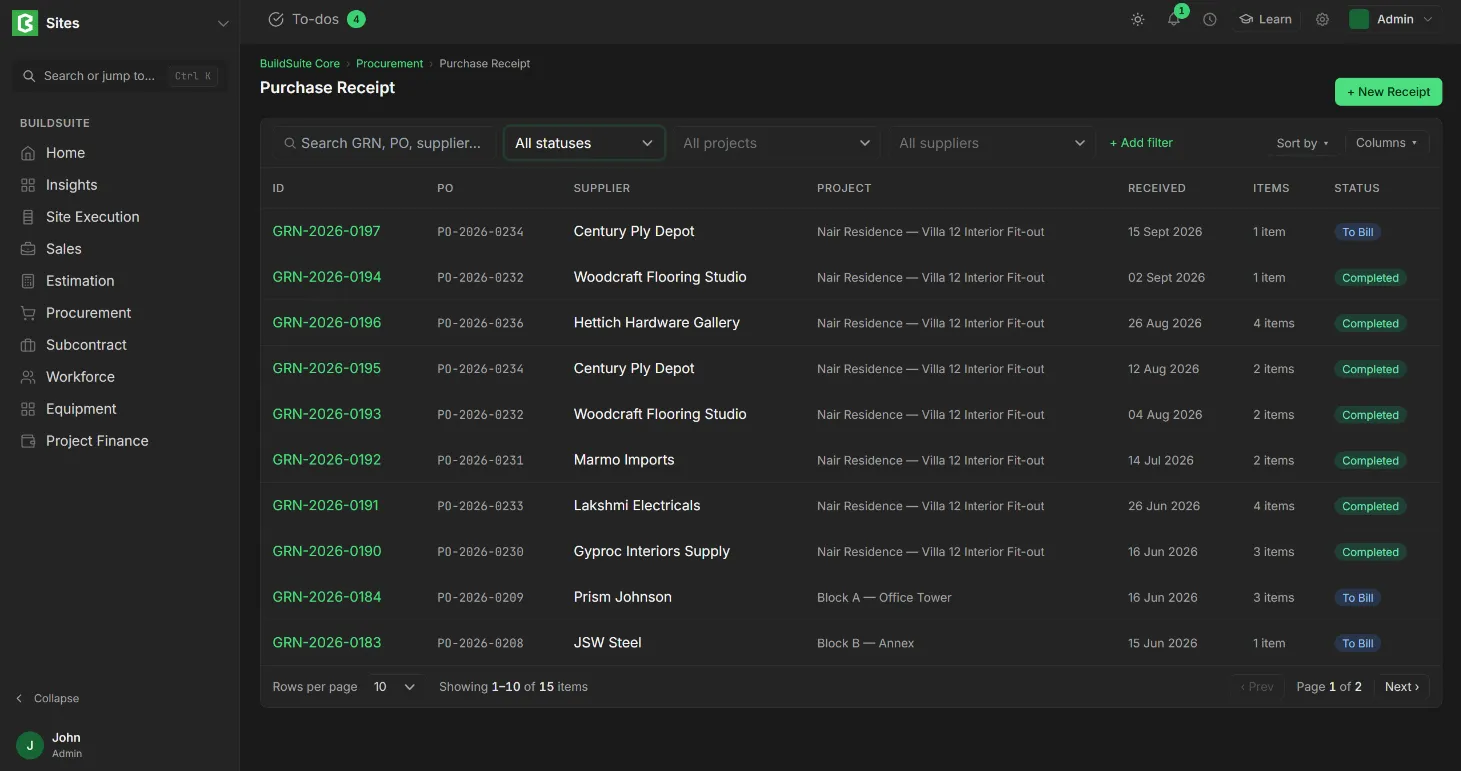
Purchase Receipt list
The list shows each receipt’s ID, Supplier, Project, Received date, Value, Billed % and Status. You can filter by status and project.
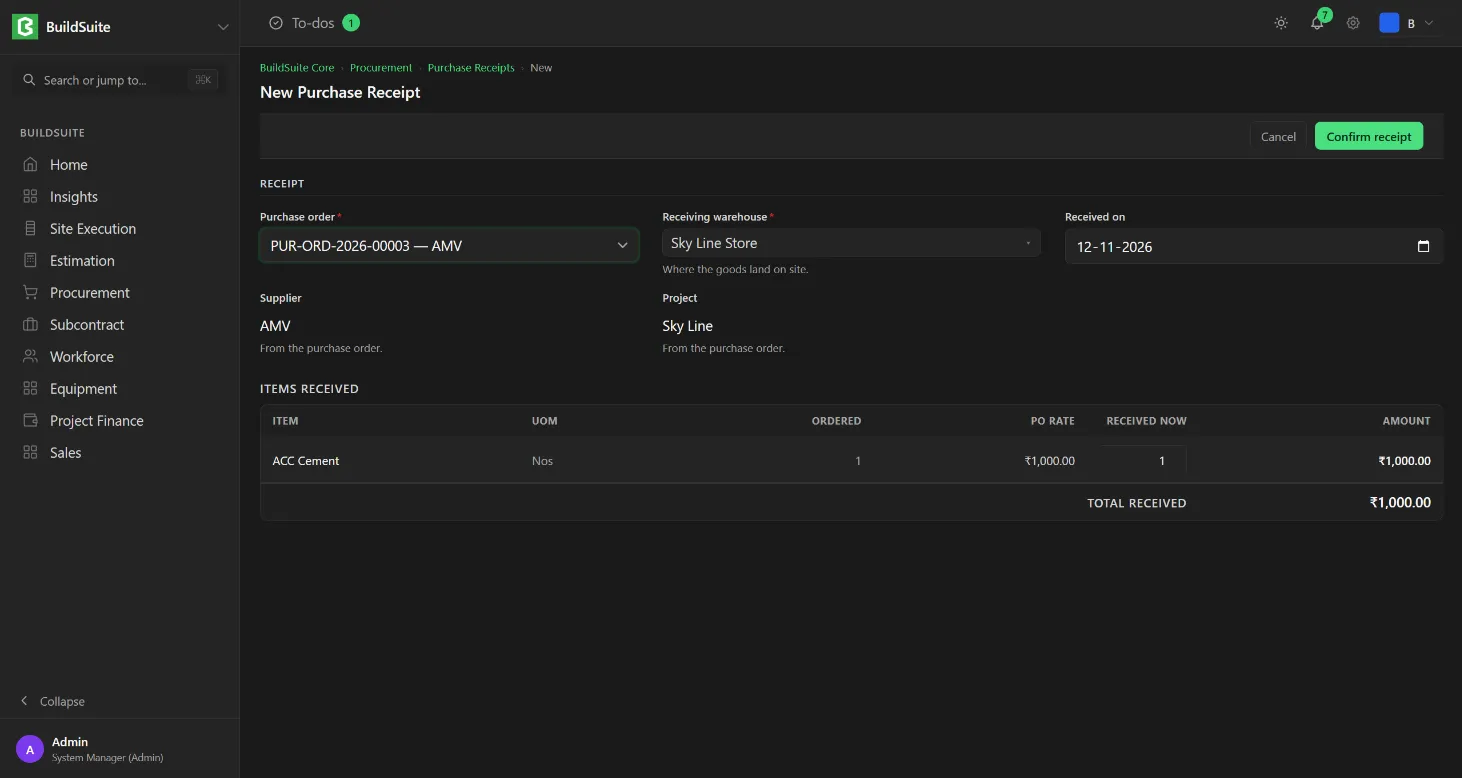
Record a receipt
- Click + New Receipt, or click + Create Receipt on the purchase order.
- Select the Purchase order (only open orders are listed).
- Select the Receiving warehouse: the project store where the goods land.
- Set the Received on date and enter the quantity received for each item.
- Click Confirm receipt. It is saved as Draft.
- Check it and click Submit to post the goods into stock.
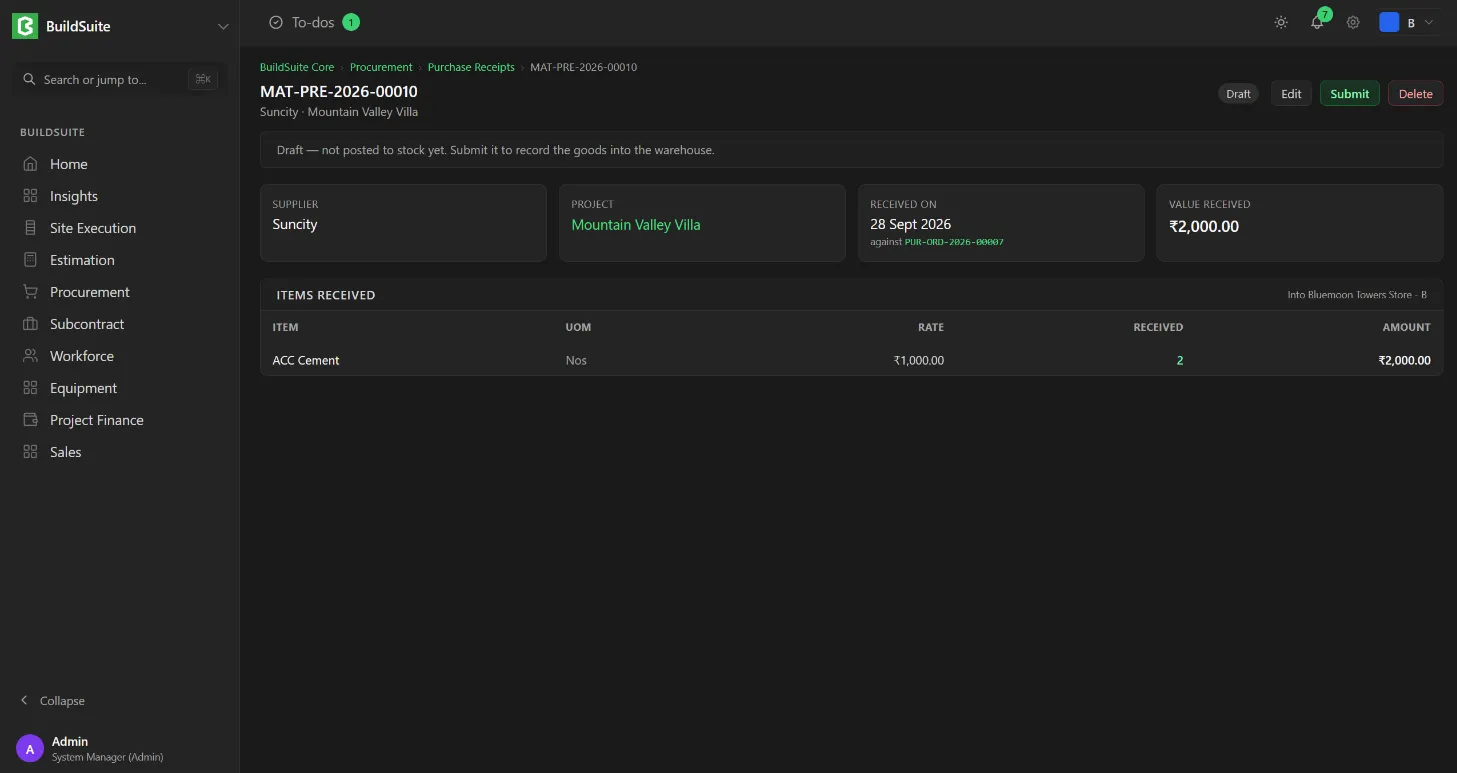
The receipt page
The page shows the Supplier, Project, Received on date (with the PO it was against) and Value received. Below that are the items received into the named store, each with its UOM, rate, quantity received and amount.
Status
| Status | What it means |
|---|---|
| Draft | Not yet posted to stock |
| To Bill | Posted to stock, waiting for the supplier’s bill |
| Completed | Received and billed |
| Return Issued | Some goods were returned to the supplier |
| Closed / Cancelled | Closed, or cancelled and reversed |
Rules
- Nothing reaches stock until the receipt is submitted.
- Received quantities that haven’t been billed show on the dashboard as Received, not billed.
- Received stock less consumed stock shows, by item and project store, in Material at site.
Last updated 1 day ago
Was this helpful?