
Workspaces and navigation
BuildSuite opens on your Home page. From there, the sidebar takes you to each workspace, and the top bar gives quick access to your to-dos, notifications and company.
Open it from: the BuildSuite icon on the apps screen
Home
Home shows a snapshot for your role. For example, an admin sees active projects, open tasks, users and pending stage approvals, while an accountant sees cash, receivables, payables and expenses to verify. Below the snapshot are the items waiting for you and Quick actions to the screens you use most.
Sidebar
| Item | What it opens |
|---|---|
| Search or jump to… (Ctrl + K) | Find any record or screen by name |
| Home | Your role’s home page |
| Insights | Ask questions of your data, and preset charts |
| Site Execution, Estimation, Procurement, Subcontract, Workforce, Equipment, Project Finance, Sales | The workspaces |
| Collapse | Hides the sidebar labels to give more room |
| Your name (bottom) | Your profile and sign-out |
Note: You see only the workspaces your role can use.
Top bar
| Item | What it does |
|---|---|
| To-dos | Tasks assigned to you, with an unread count |
| Theme | Switches between light and dark |
| Notifications (🔔) | Approvals, mentions and updates, with an unread count |
| Settings (⚙) | Opens Settings. Admins only |
| Company | Shows the company you’re working in. Click it to switch. It appears only when company awareness is on |
Inside a workspace
Every workspace page has the same layout:
- Dashboard: a live summary for that area, for example the Procurement Dashboard.
- Records: tiles that open each list, for example Purchase Orders.
- Reports: the reports for that area. See Reports index.
Admins can change the tiles shown on each workspace in Settings → Workspace Setting.
Lists and records
Every list works the same way: search, filters, + Add filter, Sort by, Columns and Rows per page. Click a row to open the record. See Common conventions.
Insights
Insights lets you ask for a report in plain language, for example “Supplier spend by supplier, top 5” or “Man-days by project this month”. Click Build report, then reshape the result in plain words. There are also 12 preset reports, such as Spend by supplier, Revenue by month, Tasks by status, Expenses by cost type and Scope changes.
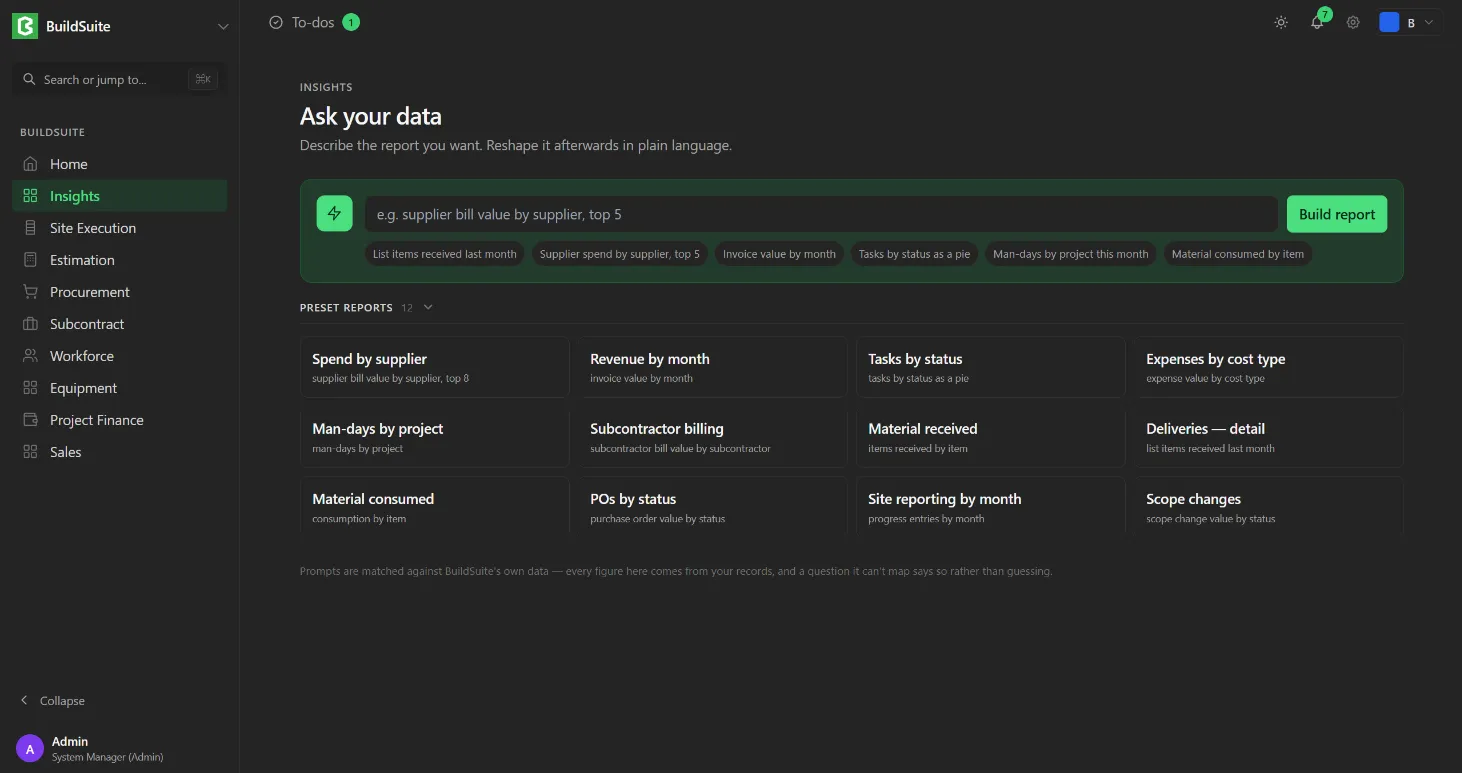
Note: Insights answers only from your BuildSuite records. If it can’t map a question to your data, it says so rather than guessing.