
A Subcontractor is a firm the company gives part of the project work to, for example a flooring, plastering or waterproofing contractor. The subcontractor record holds their contact and tax details and lists every work order given to them.
Open it from: Subcontract → Subcontractors
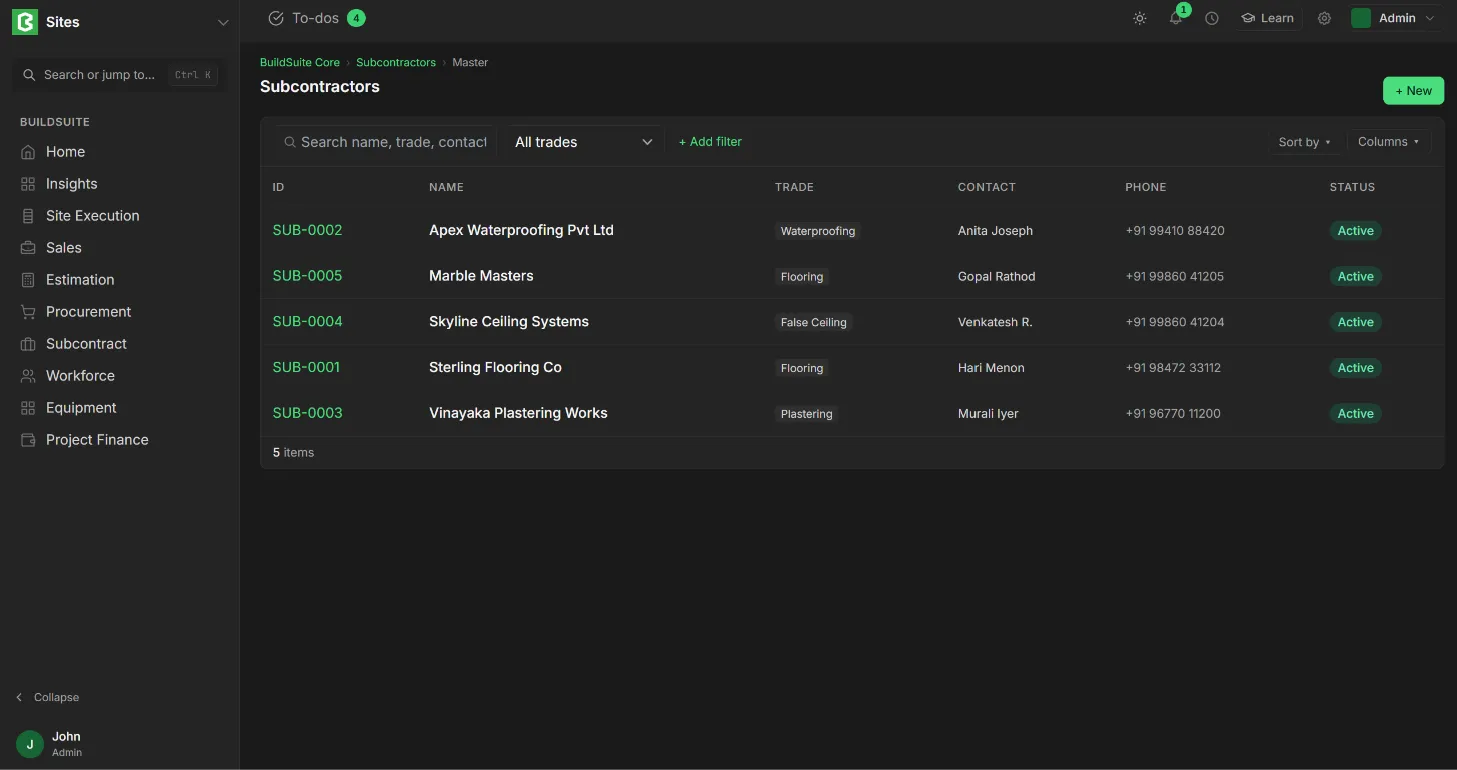
Subcontractors list
The list shows each subcontractor’s ID, Name, Trade, Contact, Phone and Status. You can search by name, trade or contact, and filter by trade. + Add filter, Sort by and Columns work as on every list.
Create a subcontractor
- Open Subcontractors and click + New.
- Under Contact, enter the name, trade, contact person, phone and email.
- Under Statutory, enter the tax ID and company.
- Save.
Fields
Contact
| Field | Mandatory | What it means |
|---|---|---|
| Name | Yes | The subcontractor’s firm name |
| Trade | No | The kind of work they do, for example Flooring or Plastering |
| Status | Yes | Active or Inactive. Default: Active |
| Contact person | No | The person to deal with at the firm |
| Phone, Email | No |
Statutory
| Field | Mandatory | What it means |
|---|---|---|
| Tax ID | No | For example GSTIN in India |
| Company | Yes | The main company the subcontractor works with. They can still get work orders from other companies |
The subcontractor page
The page shows the contact and statutory details, and a Work Orders table with each order’s ID, project, date, value, % billed and status. Click + Raise new work order to create a work order for this subcontractor straight away. Edit changes the details.
Rules
- Only Active subcontractors can be selected on new work orders and bills.
- Set a subcontractor you no longer use to Inactive instead of deleting them, so their work orders and bills stay linked.