
A Work Order records the work given to a subcontractor on one project: what is to be done, how much, at what rate, how much is held back as retention, and on what terms. It is the basis for measuring and billing the work. Once submitted, it counts as committed cost on the project’s BOQ.
Open it from: Subcontract → Work Orders
Before you begin
- The Subcontractor and the Project must exist.
- The project’s BOQ must have cost codes, so each line can be linked to one.
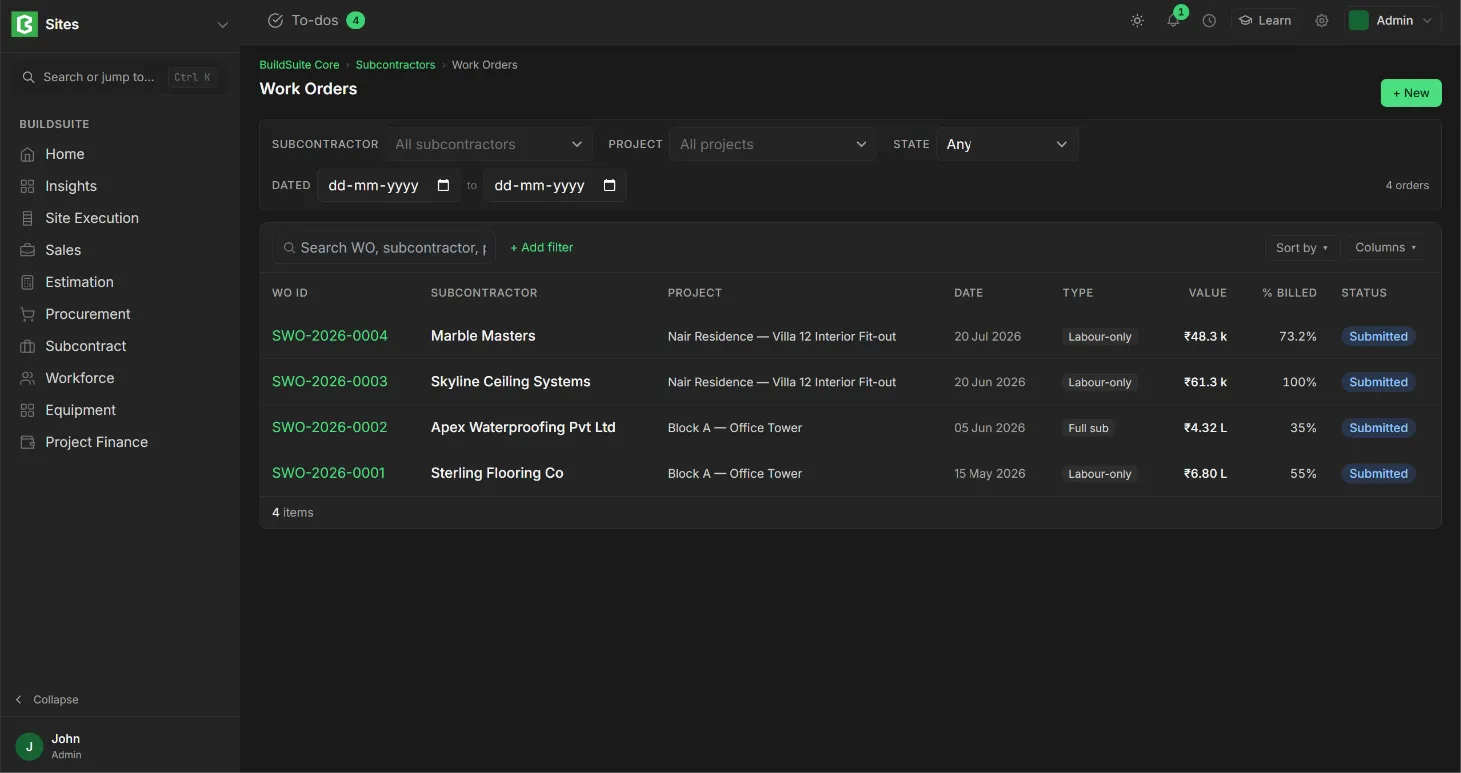
Work Orders list
The list shows each order’s WO ID, Subcontractor, Project, Date, Type, Value, % Billed and Status. You can filter by subcontractor, project, state and a date range, and search by WO, subcontractor or project.
Create a work order
- Open Work Orders and click + New. You can also click + Raise new work order on a subcontractor.
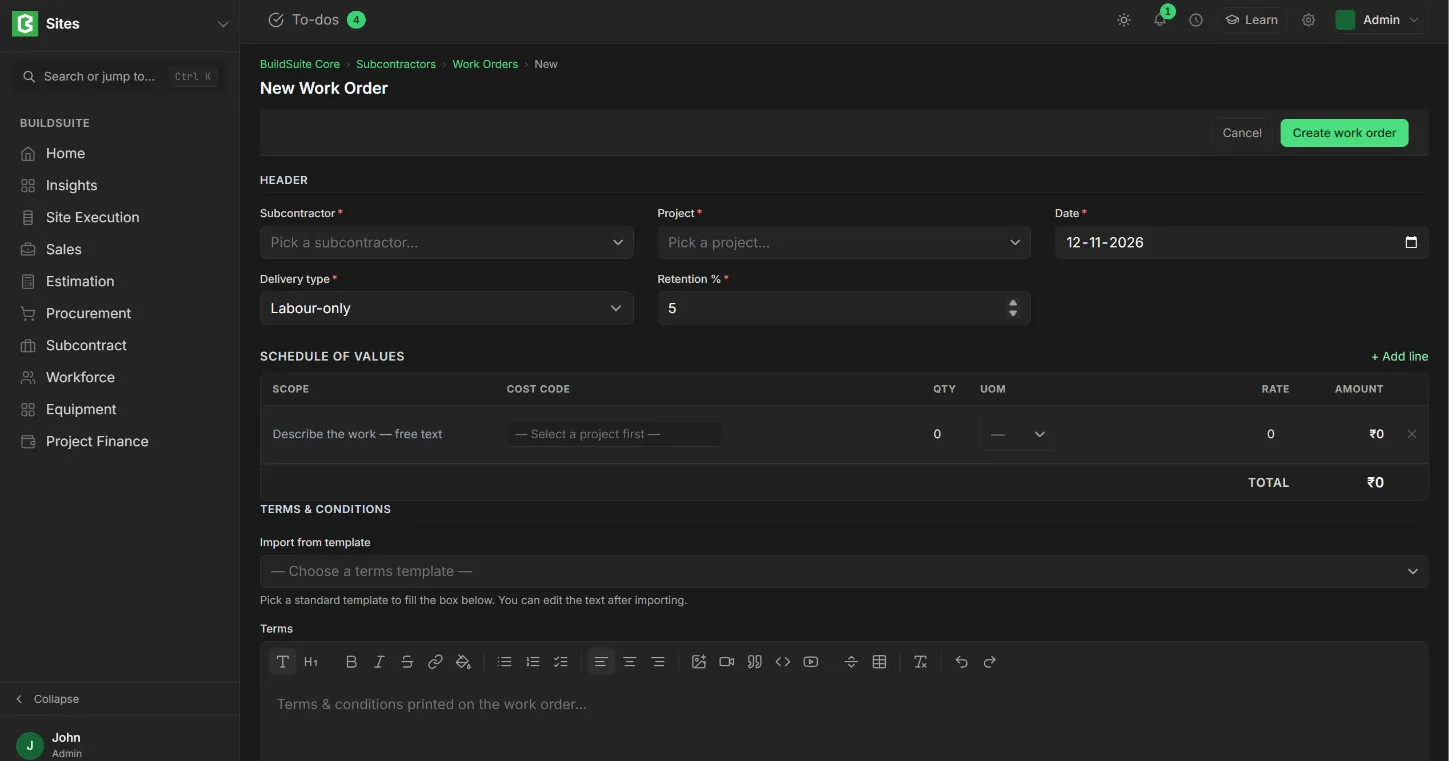
- Under Header, select the Subcontractor and Project, and set the Date, Delivery type and Retention %.
- Under Schedule of Values, click + Add line for each item of work. Enter the scope, cost code, quantity, unit and rate.
- Under Terms & Conditions, import a terms template or type the terms.
- Click Create work order. It is saved as Draft.
- Check it and Submit it.
Fields
Header
| Field | Mandatory | What it means |
|---|---|---|
| Subcontractor | Yes | Who the work is given to |
| Project | Yes | The project the work is for. The work order’s company must match the project’s company |
| Date | Yes | Default: today |
| Delivery type | Yes | Labour-only: the subcontractor supplies labour and the company supplies materials. Full sub: the subcontractor supplies materials and labour |
| Retention % | Yes | The share of each bill held back until the defect-liability period ends. Default: 5% |
Schedule of Values
| Field | What it means |
|---|---|
| Scope | A description of the work, for example “Terrace waterproofing, APP membrane on 1,800 m² roof slab” |
| Cost Code | The BOQ cost code the work belongs to. Select the project first |
| Qty, UOM | The awarded quantity and its unit |
| Rate | The agreed rate per unit |
| Amount | Qty × Rate. The total of all lines is the work order value |
Terms & Conditions: pick a template under Import from template to fill in the terms, then edit them if needed. The terms are printed on the work order.
The work order page
The top of each work order shows five cards: the Subcontractor and their trade, the Project and work order date, the Total Value and retention %, the amount Billed to Date with its %, and the Retention Held so far.
Below the cards are four tabs:
- Schedule of values lists each line with its awarded quantity, rate and line value, and shows progress against it: quantity Measured to date, amount Billed and % Complete.
- Measurements lists the Measurement Books recorded against this work order.
- Bills lists the subcontractor bills raised against it.
- Terms shows the terms and conditions.
On a submitted work order you can click Print / PDF for a printable copy, + Record measurement to start a Measurement Book, + Bill progress to raise a subcontractor bill, or Cancel.
Example: 1,800 m² is awarded at ₹240, so the work order value is ₹4,32,000. When 630 m² is measured and billed, Billed is 630 × ₹240 = ₹1,51,200 (35% complete), and Retention Held is 5% × ₹1,51,200 = ₹7,560.
Rules
- A work order can be edited only while it is in Draft. Once submitted, its lines, rates and terms are locked.
- Measurements and bills can be recorded only against a submitted work order.
- A submitted work order counts as committed cost on the BOQ, under each line’s cost code.
- The quantity measured can go above the awarded quantity. Measured to date then shows more than the awarded qty, so check it before billing.
- Retention is held back from every bill at the work order’s retention %.
- A work order can’t be cancelled while it has measurement books or bills against it. Remove those first.
- To change a submitted work order, cancel it, amend the copy and submit it again. The amended copy keeps the same ID with a suffix, for example SWO-2026-00016-1.