
A project is one construction job or contract. Every work package, task, progress entry, stage, team member and attachment belongs to a project.
Project fields
| Field | Type | Mandatory | Notes |
|---|---|---|---|
| Project Name | Text | Yes | |
| Project Code | Text | No | Unique. If given, it becomes the project's record ID; otherwise the naming series is used. |
| Company | Link: Company | Yes | Filled automatically and hidden on a one-company site |
| Project Type | Select | Yes | Internal / External / Renovation |
| Project Category | Select | No | Commercial / Residential / Infrastructure. Picks the project template (see 4.5) |
| Allow Subproject | Tick box | - | Default: off. Tick to allow sub-projects under this project |
| Client | Link: Customer | No | |
| Project Manager | Link: Employee | No | |
| Priority | Select | No | Low / Medium / High (default Medium). |
| Location | Text | No | |
| Start Date | Date | No | Defaults to today |
| Expected End Date | Date | No | Cannot be before Start Date |
| Budget | Currency | No | |
| Status | Select | Yes | See 4.3 |
| Progress | Percent | – | Read-only. Calculated from task progress entries |
| Description | Text | No |
New projects are named with the series PRJ-.YYYY.-#### by default. You can change the naming series or switch to a custom project ID in BuildSuite Core Settings.
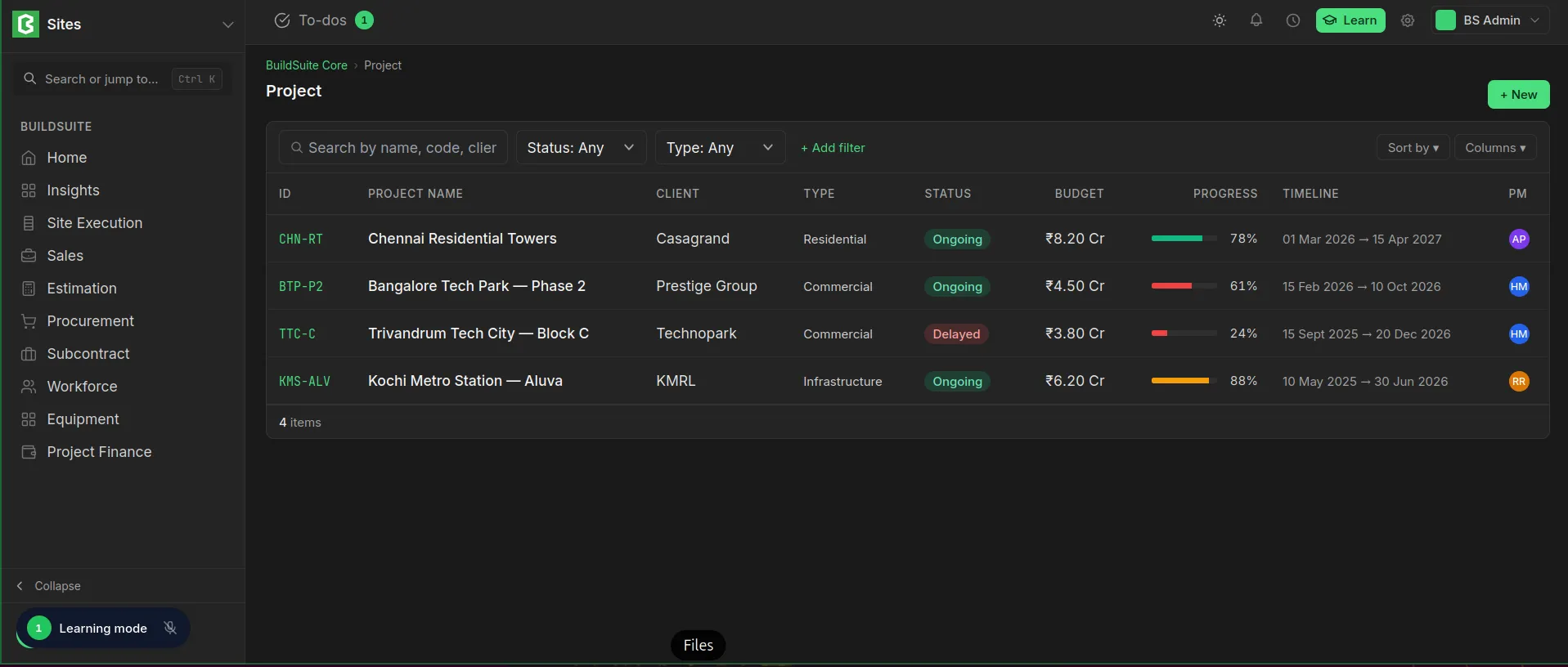 Projects List
Validation rules
- Project Name, Project Type and Company are mandatory.
- Expected End Date cannot be earlier than Start Date.
- A sub-project must point to an existing parent project.
- On a multi-company site, a user can choose only the companies they have permission for.
Status and progress
| Status | How it is set |
|---|---|
| New | Default when the project is created |
| Ongoing | Automatically, when the project's progress goes above 0% |
| Delayed | By the user |
| Completed | By the user |
The system never overrides Delayed or Completed.
Project progress is the simple average of the progress of every task in the project and in all its sub-projects. It is recalculated whenever a task changes. A project with no tasks keeps its last value. See chapter 8 for all progress rules.
Creating a project
- In Site Execution, open Projects and click New Project.
- Fill in the project fields.
- Choose a Project Category if the project should start from a template, and tick the default data to create (see 4.5).
- Click Save.
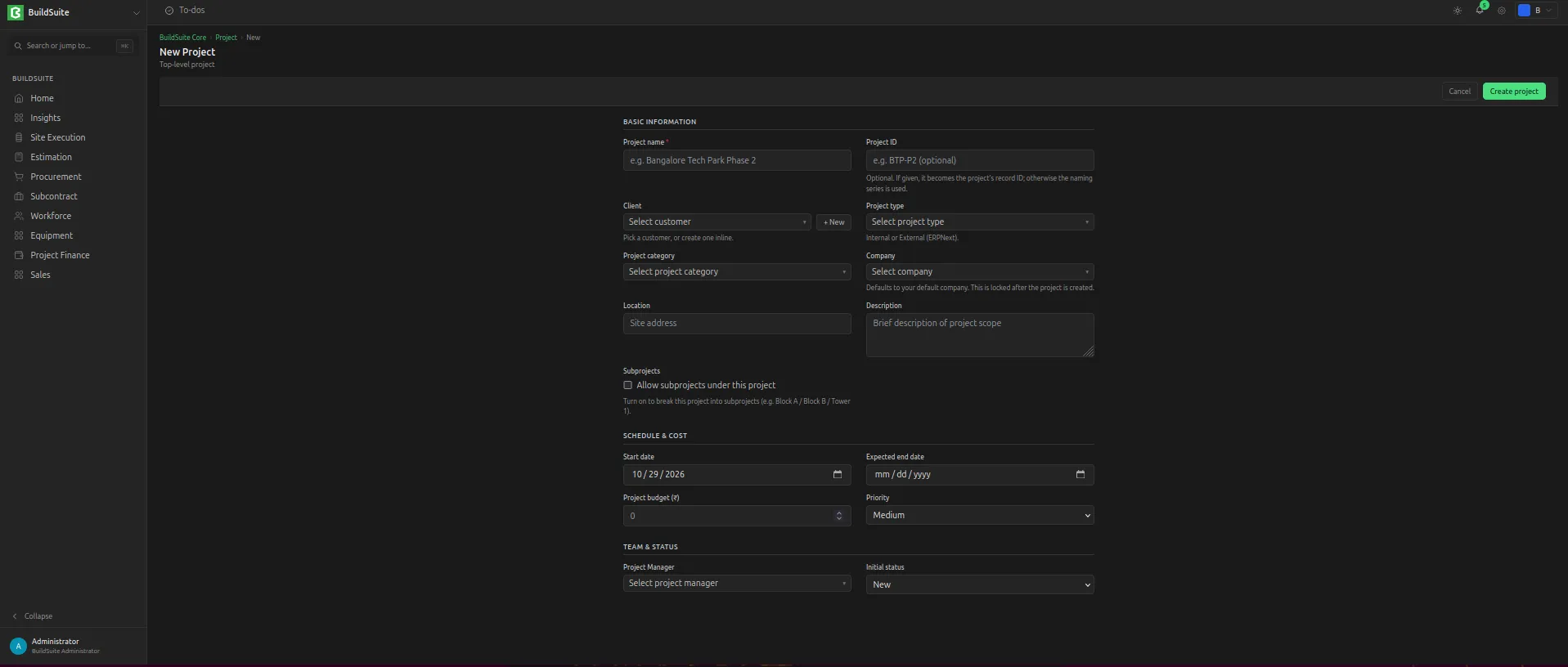 Create a new Project
Project page
The header shows the project name, its Status and Priority badges, and the Project ID. Schedule opens the Gantt view, Edit opens the form, and more has the other actions, such as Delete.
The Overview tab shows:
| Area | What it shows |
|---|---|
| Client | The customer linked to the project. |
| Actual vs Planned | Actual cost against budget, with the difference and % under or over. |
| Progress | Project progress % |
| Timeline | Start and expected end dates, total days and days remaining. |
| About this project | The project Description. |
| Reports | Shortcuts to project reports, such as Progress report, Project P&L, Cost vs budget by cost code and Delay analysis. Show more lists the rest. |
| Project Manager | The assigned project manager. |
| Project details | Status, Priority, Category, Project Type, Company, Location, Project ID and created date. Edit changes them. |
The other tabs list the project’s records, each with a count: Subprojects, Work Packages, Tasks, Stage Planning, BOQ, Scope Changes, Attachments, Team. A Billing tab is also shown when the project was created from a quotation or tender. Which tabs are shown is a site setting, and each project can override it. Tabs, reports and buttons are shown only when the user’s role has permission for them.
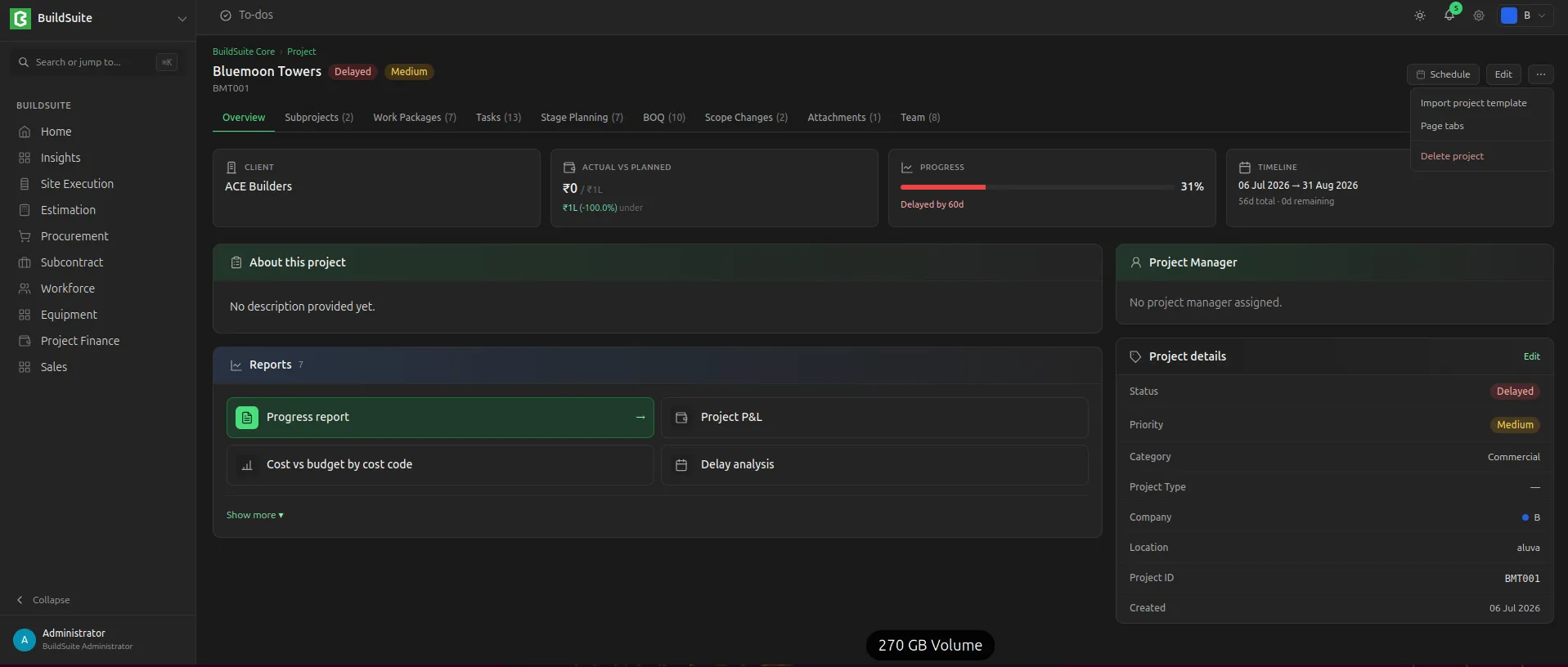 Project Details Page
Deleting a project or sub-project
Deleting a project permanently deletes everything that belongs to it:
- its sub-projects, at every level
- work packages and tasks
- task progress entries
- stages
- attachments
- team assignments
Shared masters (Rate Master, Activity Types, customers, companies) are not affected. Before deleting, the system warns that related records will be deleted, and the user must confirm.
Example: deleting Block A also deletes Ground, First and Second Floor and everything under them. Block B and Club House are not affected.