
A Purchase Order (PO) records an order placed with a supplier: what is ordered, how much, at what rate, when it’s needed and on what terms. When the PO is submitted, each coded line counts as committed cost on the project’s BOQ.
Open it from: Procurement → Purchase Orders
Before you begin
- The Supplier, Project and Items must exist.
- To order against a material request, the request must be Approved.
Purchase Order list
The list shows each order’s ID, Supplier, Project, Ordered date, Required By, Value, Received (a progress bar with %) and Status.
You can search by PO, supplier or project, and filter by status, project or supplier.
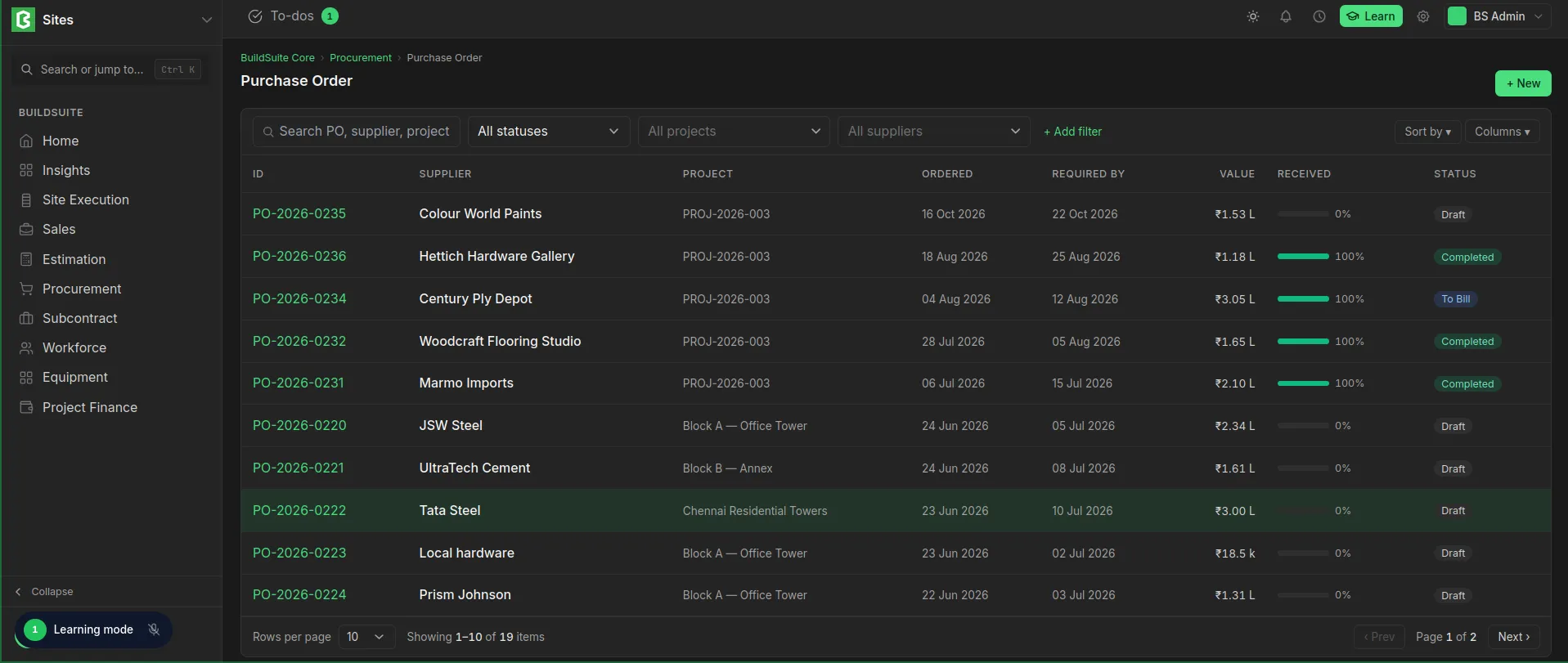 Purchase Order List View
Create a purchase order
- Open Purchase Orders and click + New.
- Select the Supplier and Project, and set the Required by date.
- Optionally, select a Site contact.
- Under Items, select each item and enter the quantity, unit and rate. Add a Cost code for each line that belongs to the estimate.
- Under Terms & Conditions, import a template or type the terms.
- Click Create order. It is saved as Draft.
- Check the order and Submit it.
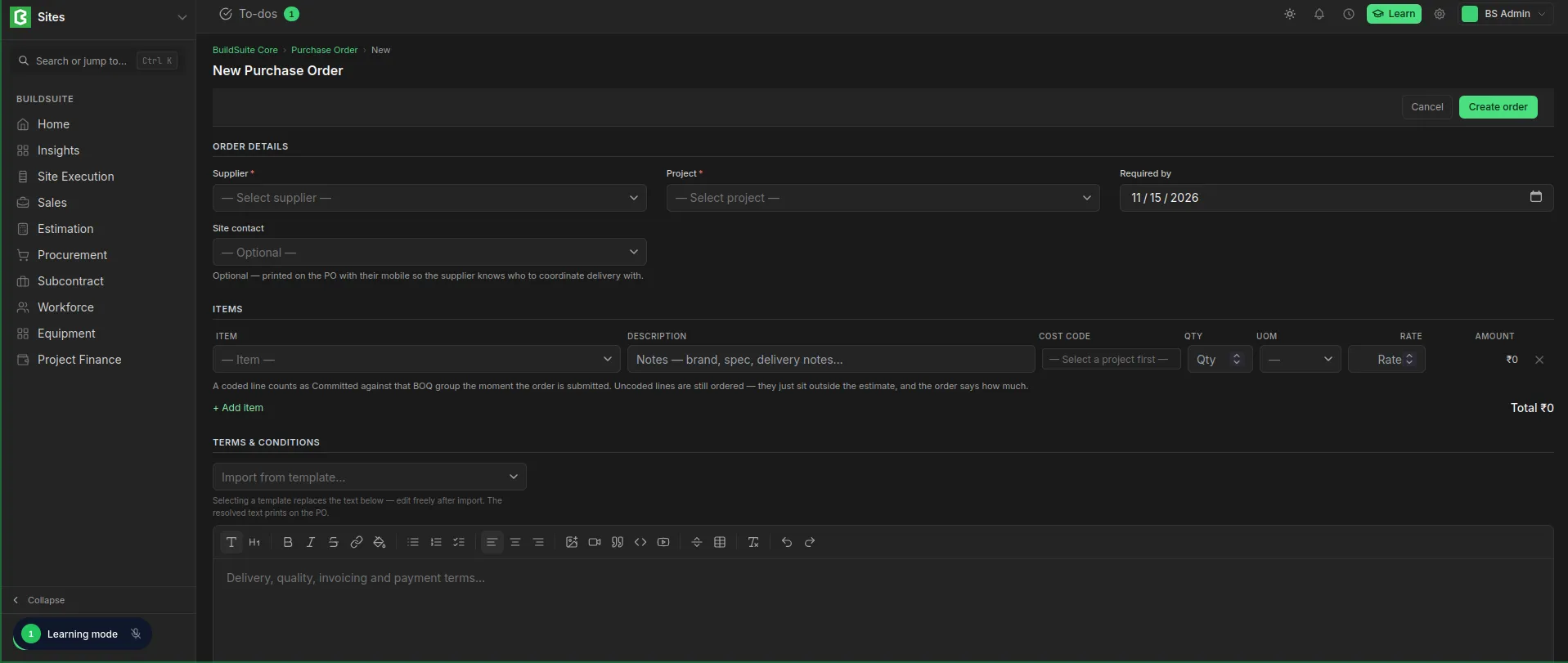 Purchase Order Creation
Fields
Order details
| Field | Mandatory | What it means |
|---|---|---|
| Supplier | Yes | Who the order is placed with |
| Project | Yes | The project the materials are for |
| Required by | No | The date the materials are needed on site |
| Site contact | No | Printed on the PO with their mobile number, so the supplier knows who to coordinate delivery with |
Items
| Field | What it means |
|---|---|
| Item | The material or service ordered |
| Description | Notes such as brand, spec or delivery instructions |
| Cost code | The BOQ group the line is charged to. Select the project first |
| Qty, UOM | The quantity ordered and its unit |
| Rate | The agreed price per unit |
| Amount | Qty × Rate |
| Total | The total of all lines |
Terms & Conditions
Pick a template under Import from template to fill in the terms. Choosing a template replaces any text already there, and you can edit it after importing. The final text is printed on the PO.
Status
| Status | What it means |
|---|---|
| Draft | Saved, not yet sent to the supplier |
| To Receive and Bill | Submitted. Nothing fully received or billed yet |
| To Bill | Fully received, waiting for the supplier’s bill |
| Completed | Fully received and billed |
| Cancelled | Cancelled |
The Received bar on the list shows how much of the order has arrived.
Rules
- A purchase order can be edited only while it is in Draft.
- When the order is submitted, each coded line counts as committed cost against its BOQ group. Uncoded lines are still ordered, but they sit outside the estimate.
- A line priced above the Rate Master rate is counted in Above Estimated Rate on the dashboard and shows in Purchase rate vs estimate.
- To change a submitted order, cancel it, amend the copy and submit it again.
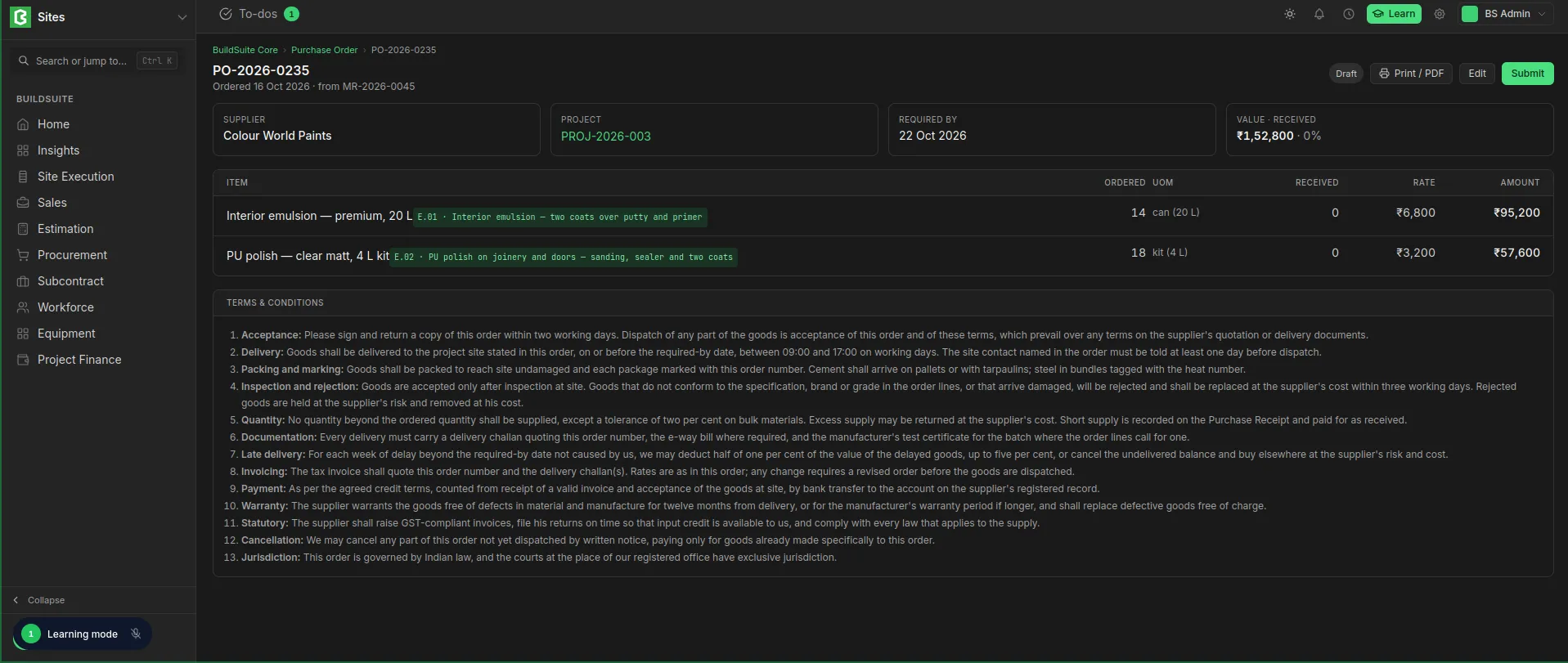 Deatiled view of Purhase Order