
Bill of Quantities (BOQ)
The BOQ lists the work for a job with quantities and rates, and gives the estimated cost. It is the base for tendering, budgeting and cost tracking.
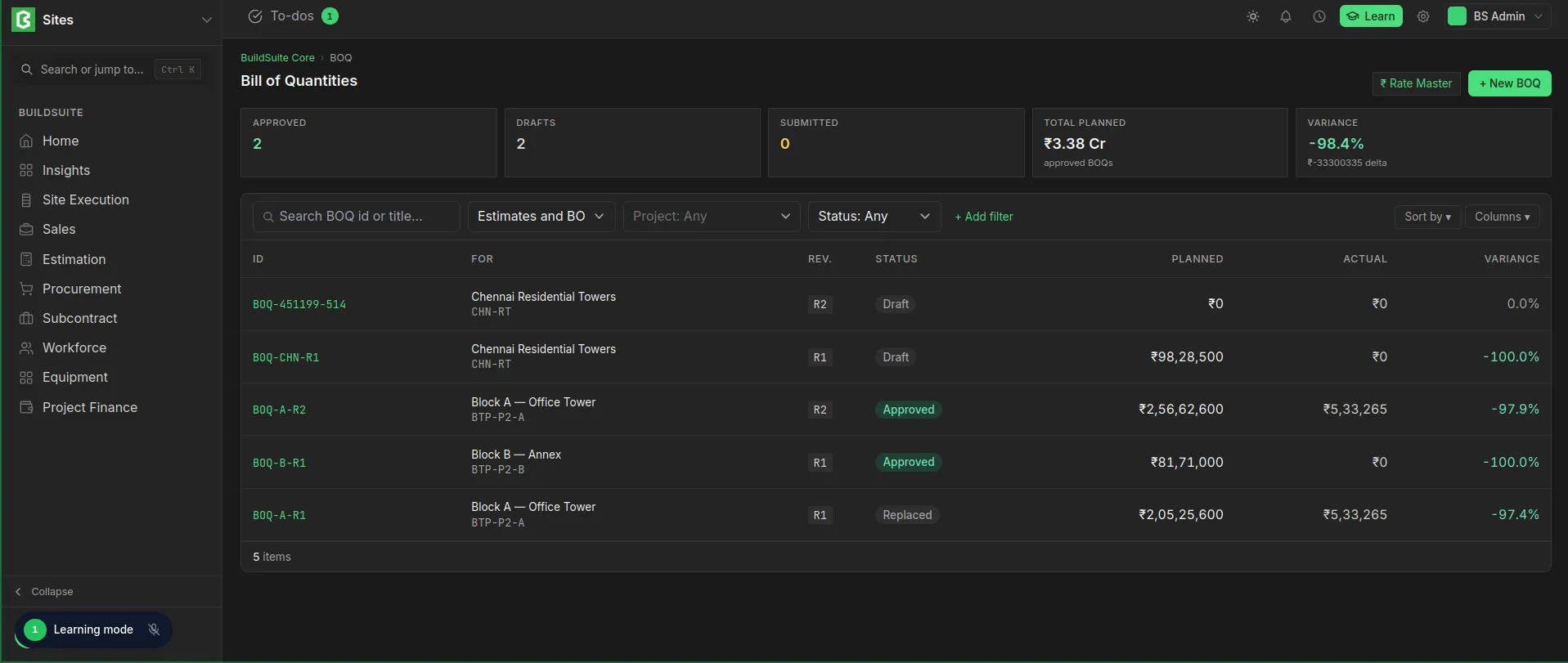 BOQ list view
Create a BOQ
Click + New BOQ and choose what it is for:
| Option | Use it when |
|---|---|
| New enquiry | There is no project yet. Link the BOQ to a project if you win the job. |
| Existing project | You need a new version of that project’s BOQ |
Enter a Title, pick a Customer if you want one, and click Create draft. Then add groups and items, import an estimate template with Import Template..., or import from Excel.
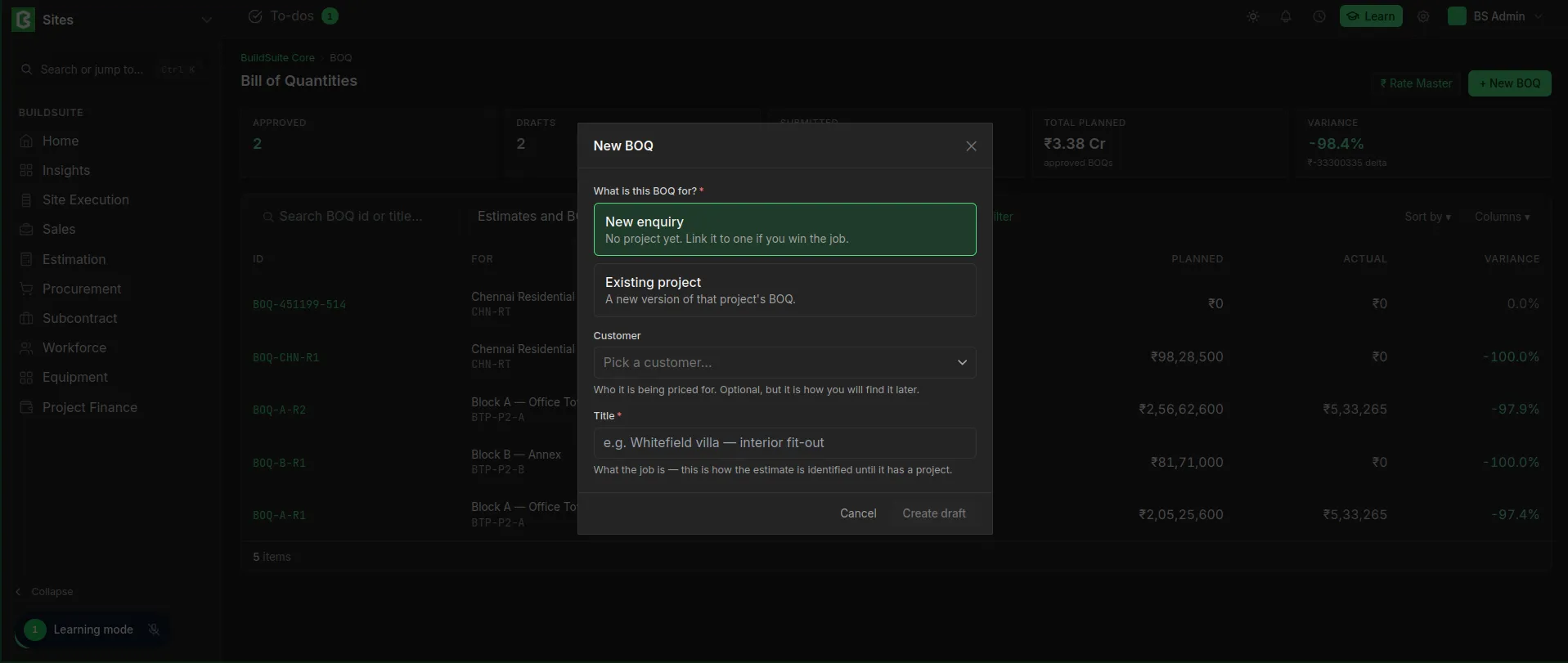 BOQ Creation
BOQ Structure
| Level | What it is | Example |
|---|---|---|
| Group | A section of work. The code is generated automatically (A, B, C…) if left blank. | A — Civil Works RCC |
| Item | A measurable piece of work, often from an assembly | A.06 RCC for decking slab, 38 m³ |
| Sub-item | The rate breakdown of an item, from the Rate Master | Cement, steel, mason, mixer |
11.4.3 BOQ fields
| Field | Type | Mandatory | Notes |
|---|---|---|---|
| Title | Data | Yes | Identifies the estimate until it has a project |
| Customer | Link: Customer | No | Who the job is priced for |
| Project | Link: Project | No | Empty for an enquiry. Set when the job is won. |
| Revision | — | Auto | R1, R2… |
| Status | — | Auto | Draft / Submitted / Approved / Replaced |
| Tax Rate | Percent | No | Default 18% |
| Margin Rate | Percent | No | Default 10% |
| Description | Text | No |
11.4.4 Item fields
| Field | Notes |
|---|---|
| Code and Description | e.g. A.06 RCC for decking slab |
| Unit, Plan Qty, Rate | Planned amount = Plan Qty × Rate |
| Quantity Source | Manual / Assembly / Template / Takeoff |
| Assembly | The assembly the item came from, if any |
| Work Package (WP) | The work package the cost belongs to |
| Task | Optional. Used to calculate actuals. |
| Cost Head | Material / Labour / Equipment / Subcontract / Preliminaries / Other |
| Fulfilment | Procure / Manufacture (make-or-buy) |
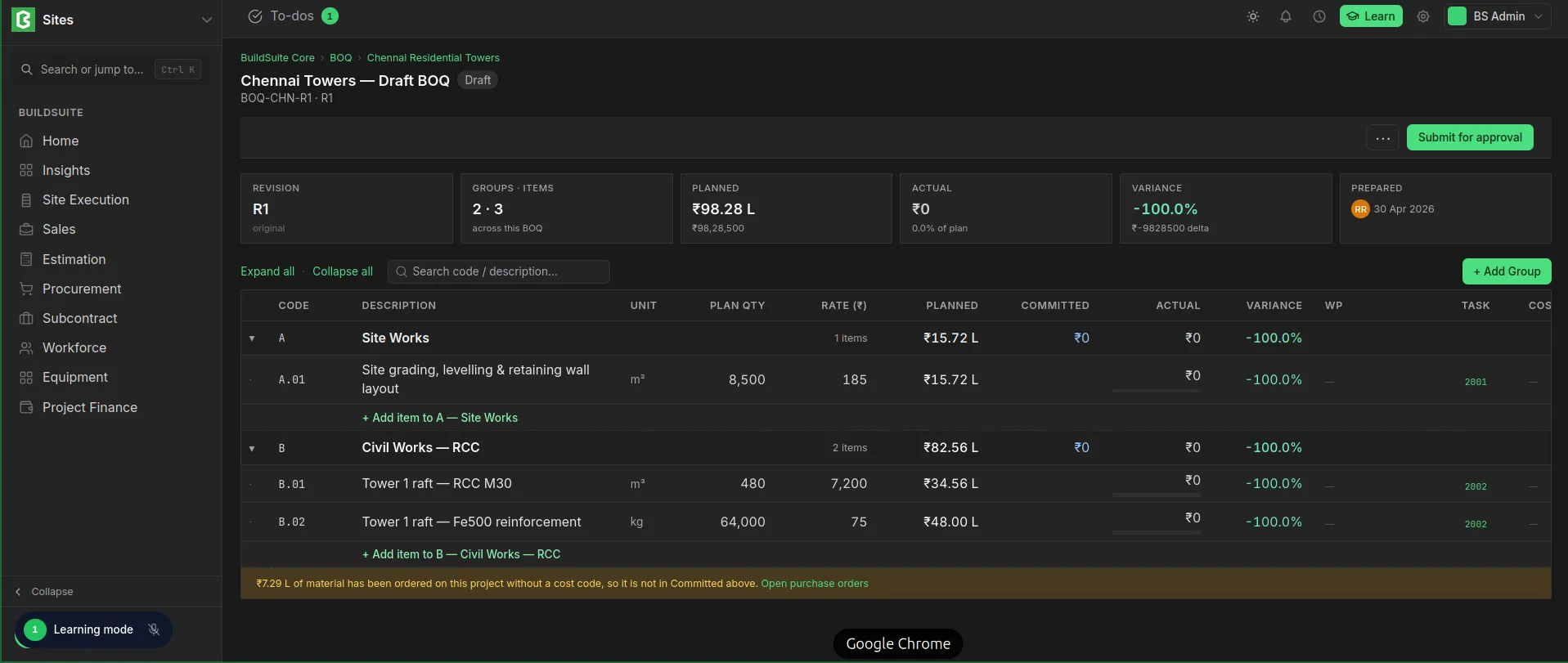 BOQ Detailed view
11.4.5 Calculations
- Item amount = Quantity × Rate
- Sub-item quantity = Coefficient × Item quantity
- Group total = Sum of its items
- BOQ total = Subtotal + Margin + Tax
Amounts are recalculated whenever a quantity or rate changes.
11.4.6 Approval and revisions
A draft is sent with Submit for approval. Each BOQ record is one revision. A project can have only one Approved revision, and approving a new one changes the previous one to Replaced. An approved BOQ is read-only. To change it, use + Revision, which creates a new draft. A revision can also come from an approved scope change order (see 10.3). In that case the page shows “from SCO …”.
11.4.7 Planned, committed and actual
For each line and group the BOQ shows:
| Column | Meaning |
|---|---|
| Planned | Plan Qty × Rate |
| Committed | Value of submitted purchase orders and subcontract work orders against the line’s cost code |
| Actual | Cost booked so far. Refresh it with Recalc actuals. |
| Variance | Actual against Planned, in % |
Material ordered on the project without a cost code is not counted as committed. A banner shows its value with a link to the purchase orders.
11.4.8 Page actions
| Action | What it does |
|---|---|
| Submit for approval | Sends a draft for approval |
| Recalc actuals | Recalculates actuals from the linked tasks’ progress |
| + Revision | Creates a new draft revision from this BOQ |
| Compare to R… | Shows the changes against the previous revision |
| Import Template... | Adds the groups and items of an estimate template |
| Import from Excel... | Imports lines from an Excel or CSV file. The system matches the columns and asks you to approve any units it doesn’t recognise. |
| Export CSV | Downloads the BOQ lines |
| Clone... | Copies the BOQ |
| Set up work packages and tasks... | Creates the project’s work packages and tasks from the BOQ |
| Delete | Deletes the BOQ (drafts only) |
BOQ list: The list shows each BOQ’s ID, what it is for (a project, or “Estimate · not yet won”), revision, status, planned, actual and variance. The cards at the top count Approved, Draft and Submitted BOQs and show the total planned value of approved BOQs.