
The Rate Master is the price book: one rate per material, labour category or piece of equipment, used across all projects.
| Field | Type | Mandatory | Example | Notes |
|---|---|---|---|---|
| Code | Text | Yes | Cement OPC 53, Mason, Excavator | Short name used to pick the rate in assemblies and BOQs. Must be unique. |
| Description | Text | No | Ordinary Portland Cement, 53 grade, 50 kg bag | The full or descriptive name of the item |
| Category | Select | Yes | Material | Material / Field Staff / Equipment / Others |
| Unit | Link: UOM | Yes | Bag, kg, day, hour | Unit the rate is priced in |
| Rate | Currency | Yes | - | Cost per unit |
| Last Updated | Date | Auto | - | Filled in automatically when the rate changes |
* A material rate can be linked to its matching Item, so the same item is used for purchasing and billing. The link is set from the item inside Materials, not on the Rate Master form.
Every change to a rate is kept in the rate history, so earlier values can be seen. The Rate Master is shared by all companies.
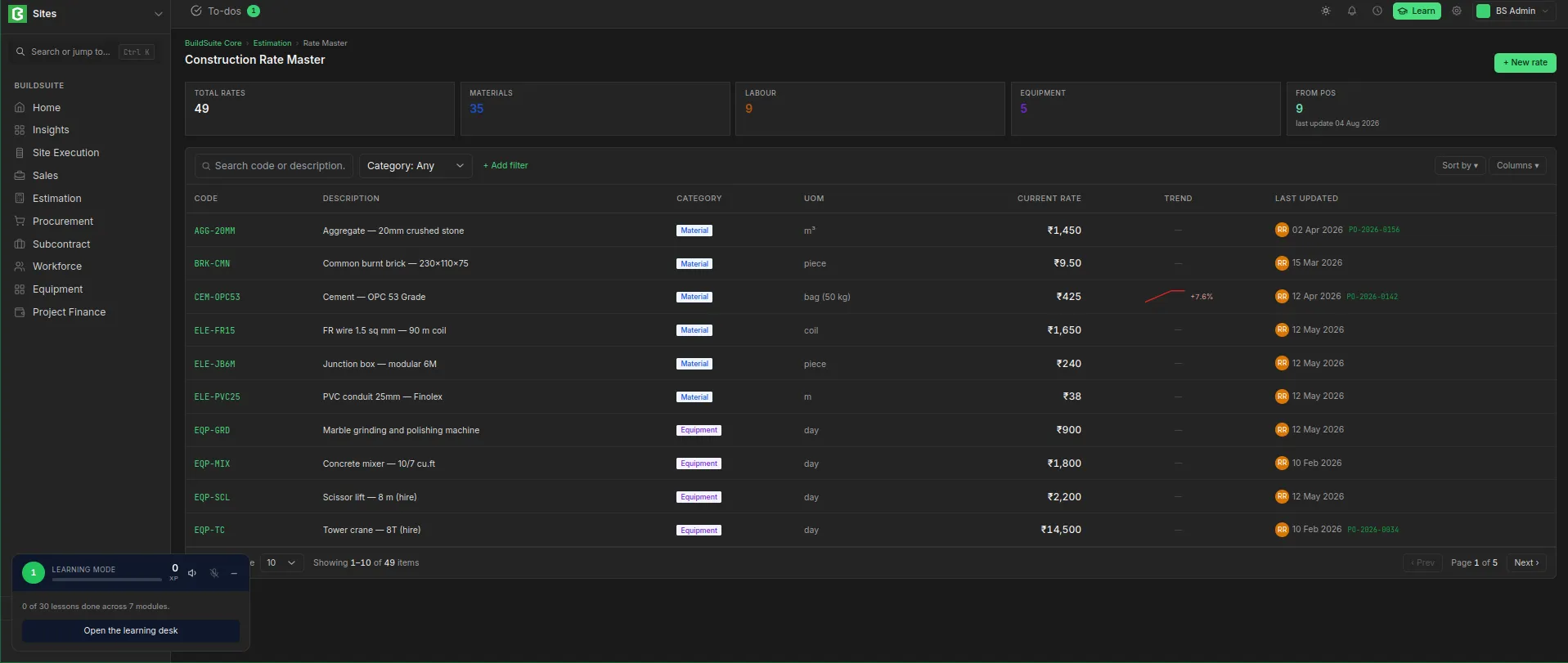 Rate master list
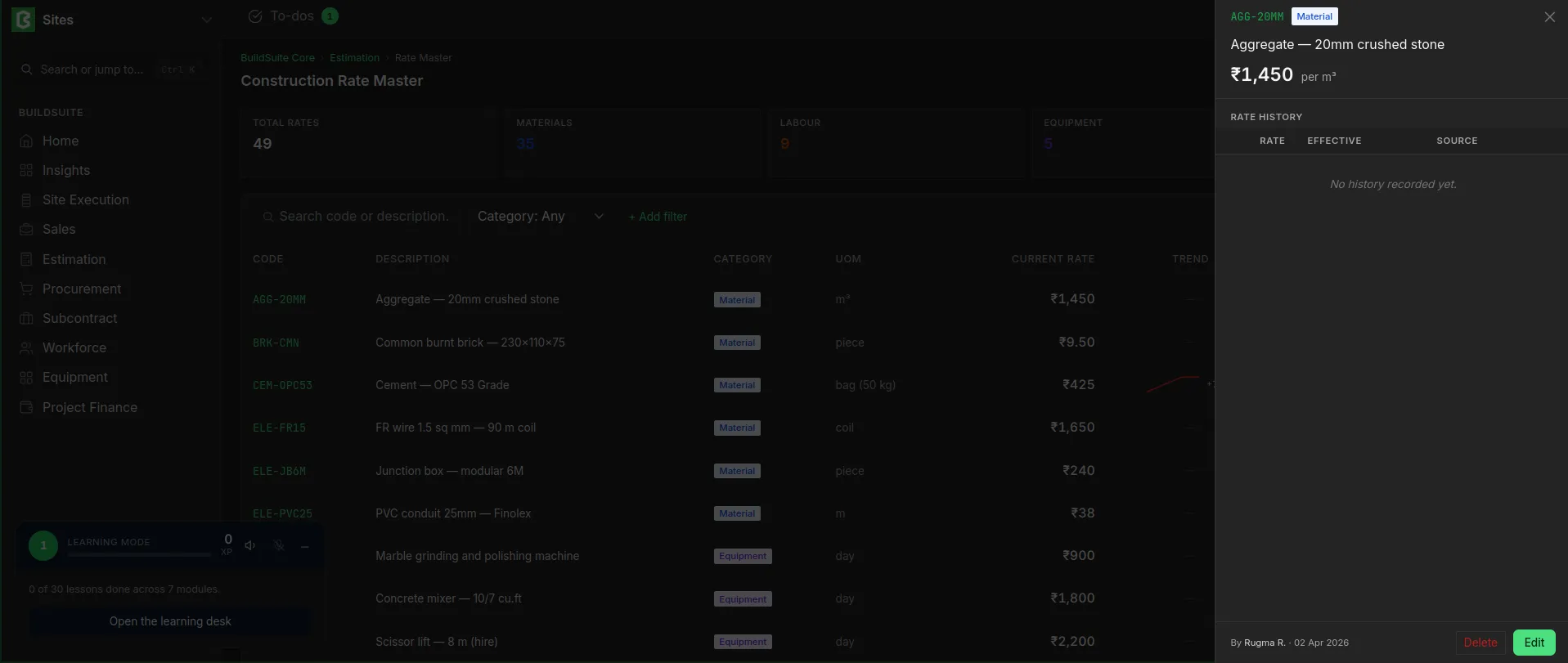 RAte Master details
View a rate
Open Estimation → Rate Master and click a rate. A side panel opens with the code, category, description and current rate per unit, and the Rate history below them.
Edit a rate
- Open the rate and click Edit.
- Change the fields you need, such as the Rate, Description or Unit.
- Click Save.
How a rate gets updated
A rate can change in two ways. Each change adds a row to the rate history.
| Source in history | When it happens |
|---|---|
| Initial | The rate is first created |
| Manual revision | A user edits the rate and saves it |
| Purchase order number (e.g. PUR-ORD-2026-00005) | A purchase order for the linked item is submitted. Its rate becomes the new current rate. |
Each history row shows the rate, the date it took effect, its source and the user who made the change. A purchase order updates the rate only when the rate is linked to an Item.
Changing a rate does not change BOQs or assemblies that already use it. They keep the rate they had when the line was added, until the line is refreshed.
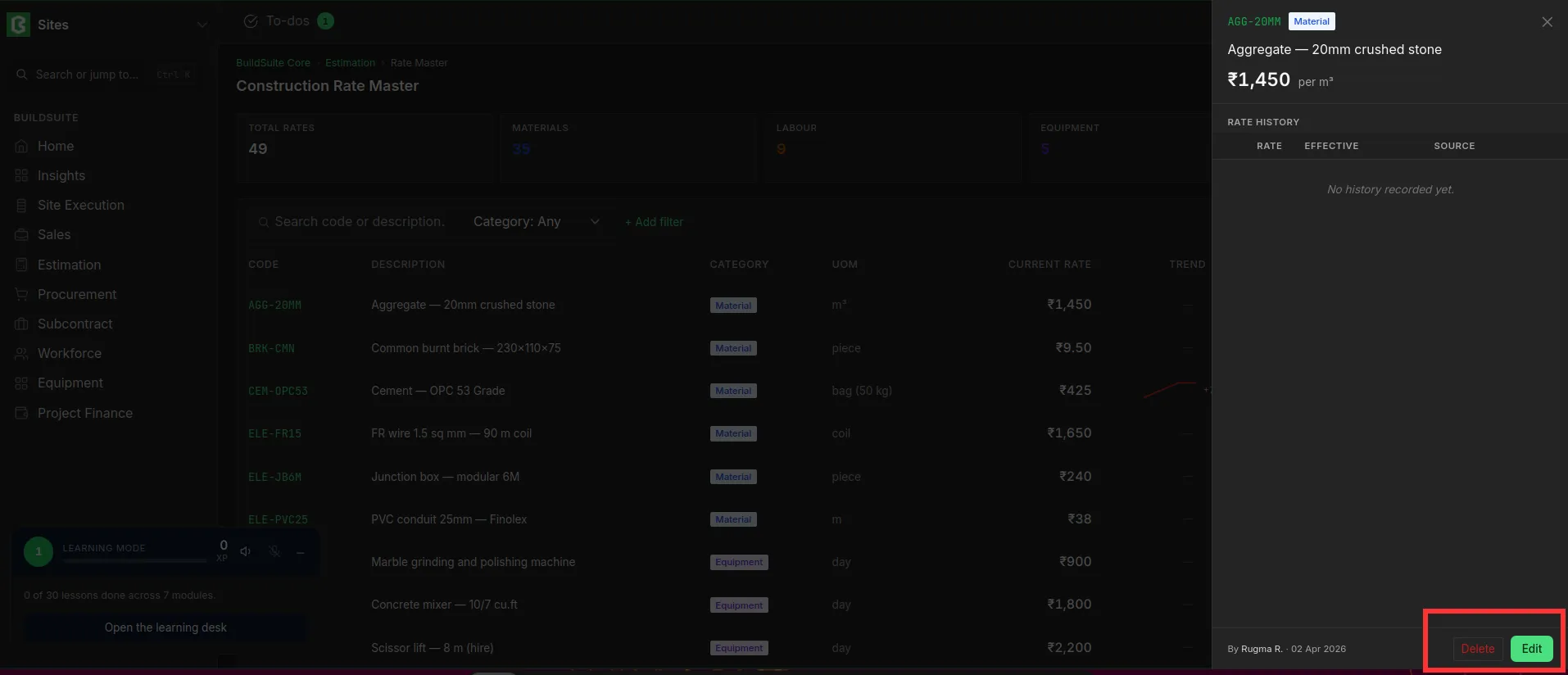 Edit and delete option in rate master
Delete a rate
- Open the rate and click Delete.
- Confirm the deletion.
A rate can be deleted only if no other record uses it. If an assembly, estimate template or BOQ uses the rate, deletion is blocked and a message names the record, for example: “Cannot delete or cancel because Construction Rate Master CEM-93 is linked with Estimate Template ET-01.”
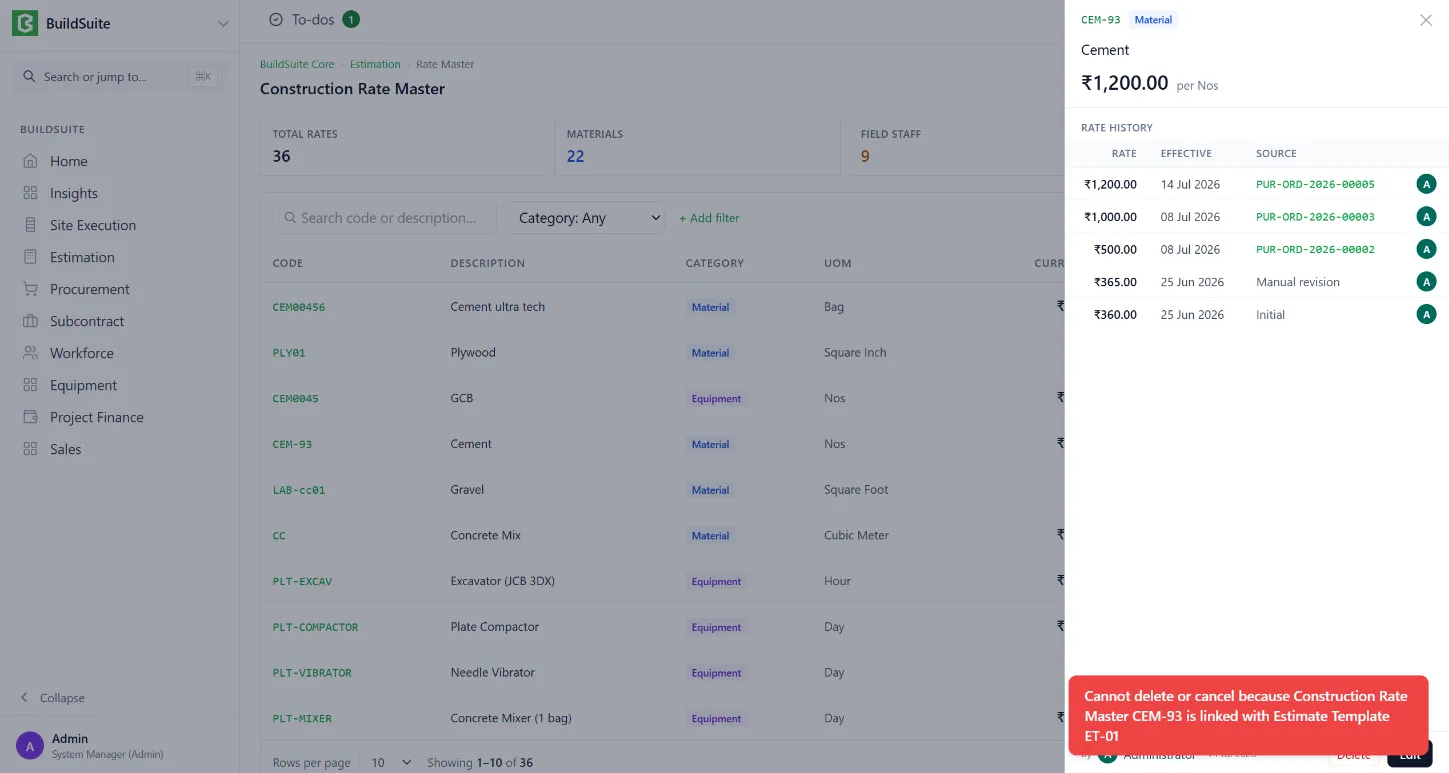
Remove the rate from that record first, then delete it. A rate that is no longer used but has history should usually be kept, so past estimates still make sense.