
An assembly is a reusable item of work priced per unit, such as “Earthwork excavation – mechanical, per m³”. It is made of Rate Master rows (materials, labour and equipment), each with the quantity needed for one unit. You build it once and reuse it in many BOQs and estimate templates.
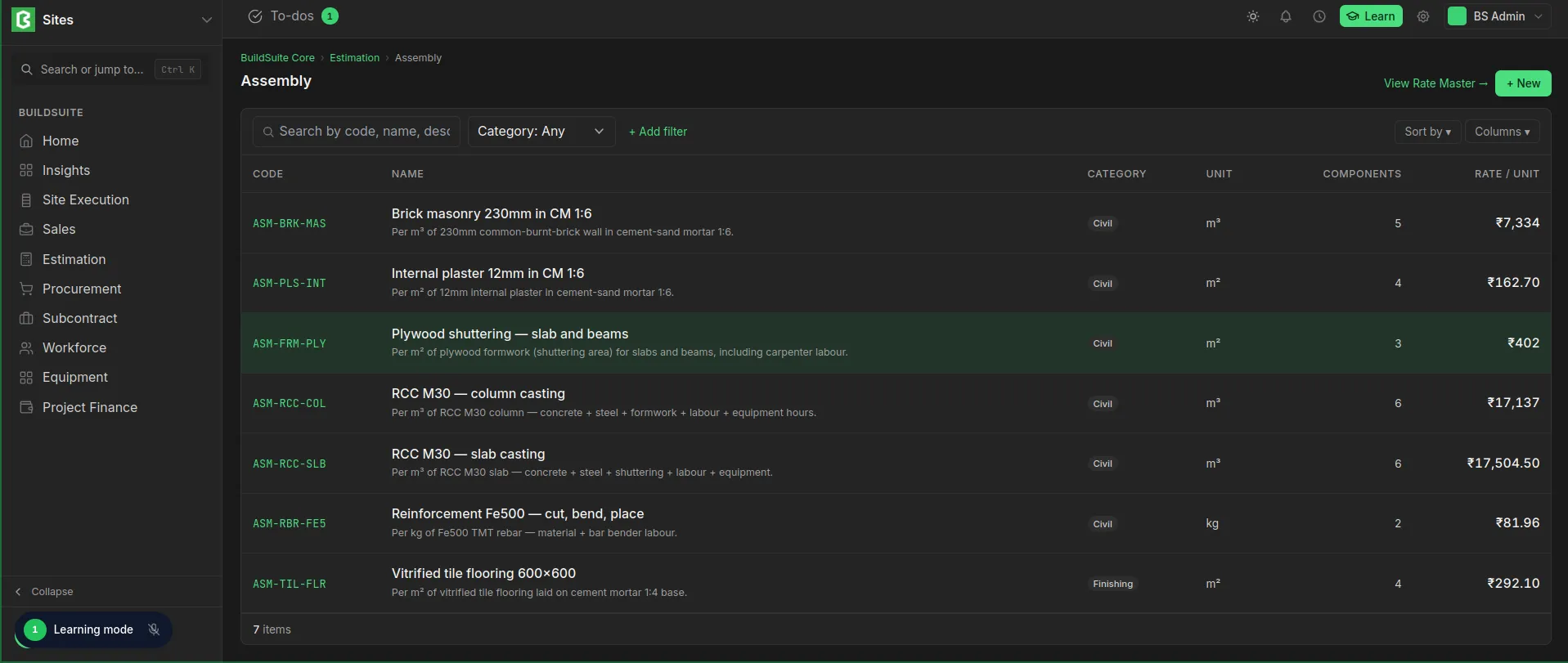 Assembly list view
Create an assembly
- Go to Estimation → Assembly and click + New.
- Fill in the assembly details (see the table below) and click Create assembly.
- On the assembly page, click + Add Component and pick a Rate Master row.
- Enter its Coefficient: how much of that resource one unit of the assembly needs.
- Repeat for each component. The rate per unit is worked out as you go.
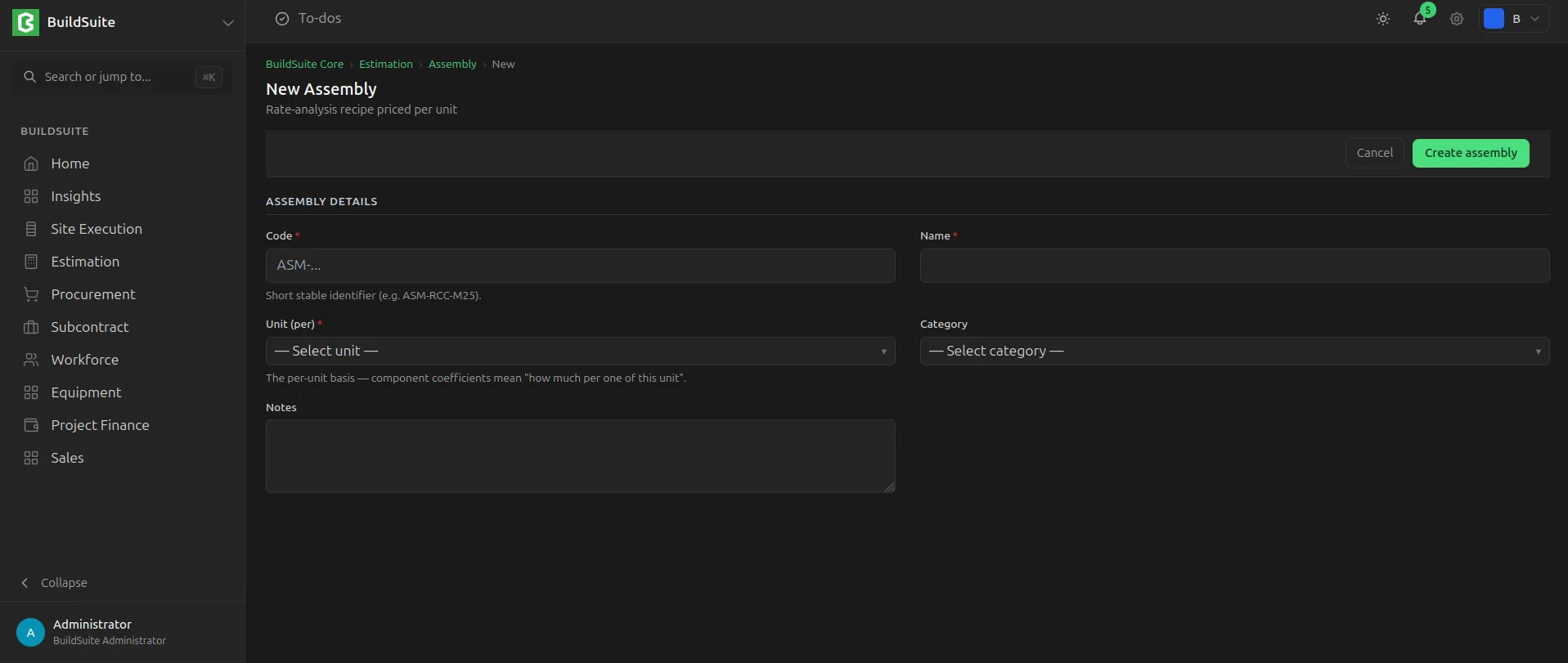 Create new Assembly
Assembly fields
| Field | Type | Mandatory | Notes |
|---|---|---|---|
| Code | Data | Yes | Short, stable ID, e.g. ASM-RCC-M25. Must be unique. |
| Name | Data | Yes | What the work is, e.g. “Cement plaster 12mm CM 1:4 – internal” |
| Unit (per) | Link: UOM | Yes | The unit the assembly is priced in. Coefficients are “how much per one of this unit”. |
| Category | Select | No | Groups assemblies, e.g. Earthwork, Concrete, Masonry, Plaster, Finishing, Formwork |
| Notes | Text | No | |
| Rate / Unit | Currency | Auto | Sum of the component amounts |
Component fields
| Field | Notes |
|---|---|
| Resource | The Rate Master row used (material, labour or equipment) |
| Coefficient | Quantity of that resource needed for one unit of the assembly. Can be edited directly in the table. |
| Unit, Rate | Taken from the Rate Master |
| Amount | Coefficient × Rate |
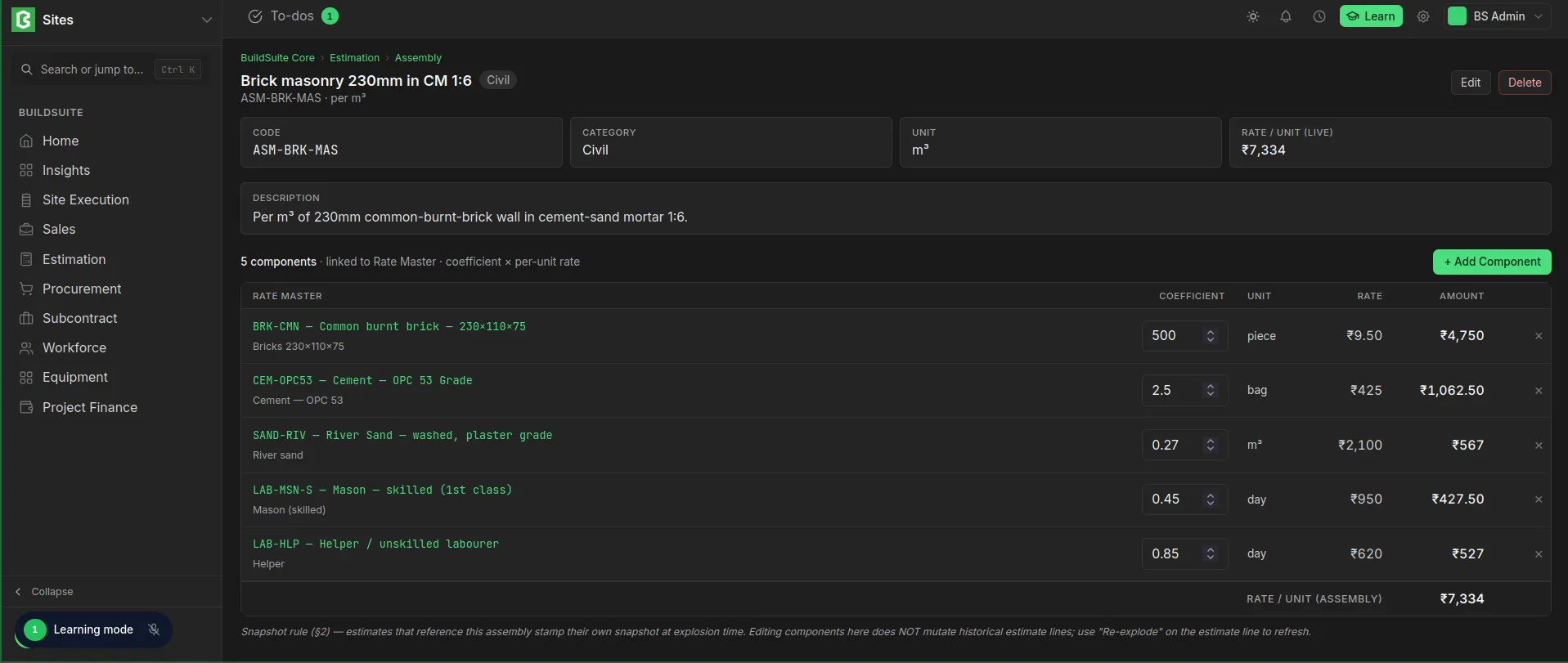 Assembly detailed view
How the rate stays current
The assembly page shows Rate / Unit (Live). Component rates are read from the Rate Master, so when a rate changes there, the assembly’s rate changes too.
BOQs work differently. When an assembly is added to a BOQ, its components and rates are copied into the BOQ, and later changes to the assembly or the Rate Master don’t change that BOQ. A BOQ line is updated only when it is re-exploded from the assembly.
Edit an assembly
- Open the assembly from Estimation → Assembly.
- Change the components directly on the page:
- Edit a Coefficient in the table.
- Click + Add Component to add a Rate Master resource.
- Click × on a row to remove a component.
- To change the code, name, unit, category or notes, click Edit, make the change and save.
The Rate / Unit is recalculated after each change.
Delete an assembly
- Open the assembly and click Delete.
- Confirm the deletion.
You can’t delete an assembly that is used in a BOQ or an estimate template. The system blocks the deletion and names the record that uses it. Remove the assembly from that record, then delete it.
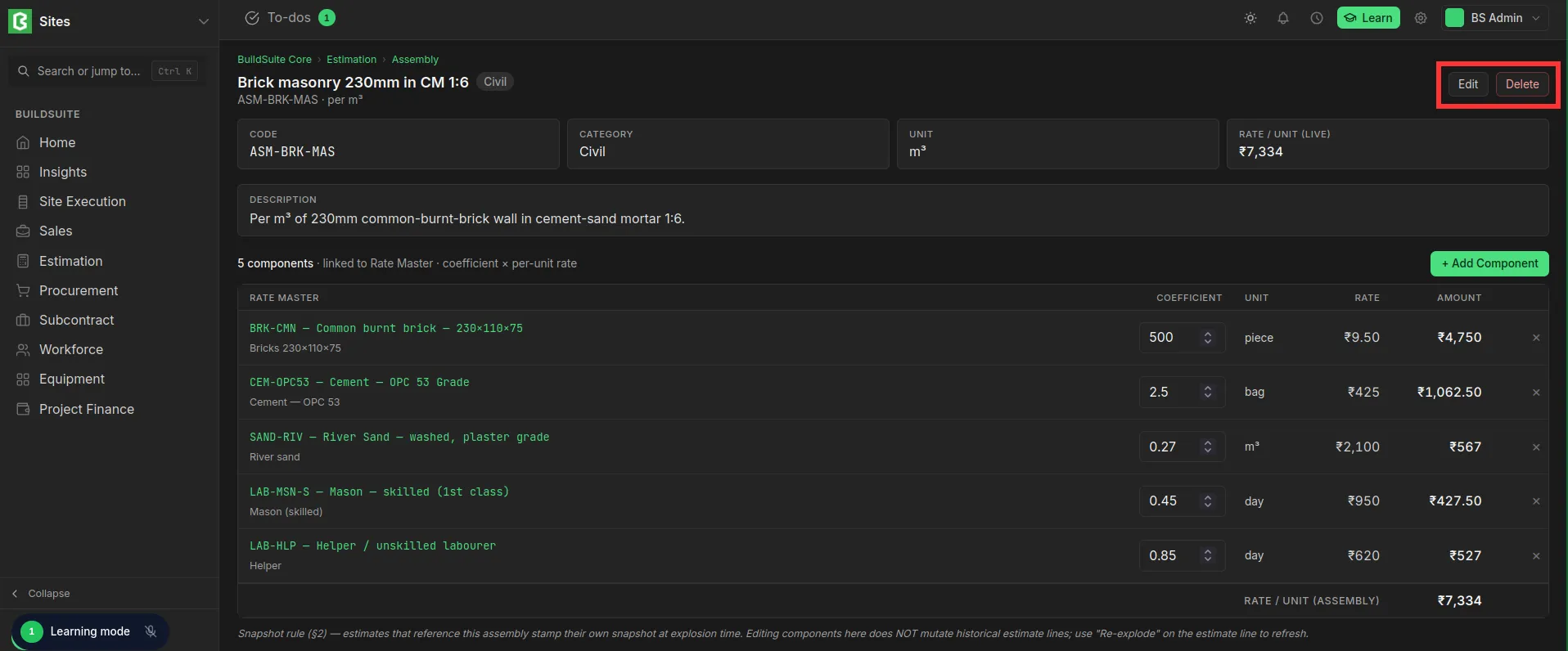 Edit and Delete option in Assembly