
Subcontractor bills
A Subcontractor Bill records what the company owes a subcontractor for work done. On a work order, it bills the certified quantity measured since the last bill, holds back retention, applies tax, TDS and any discount, and works out the net amount payable. When the bill is submitted,
Open it from: Subcontract → Subcontractor Bills
Before you begin
- For a bill on a work order, the work order must be submitted and have at least one certified Measurement Book.
- The tax templates and expense account should be set up in accounting.
Two kinds of bill
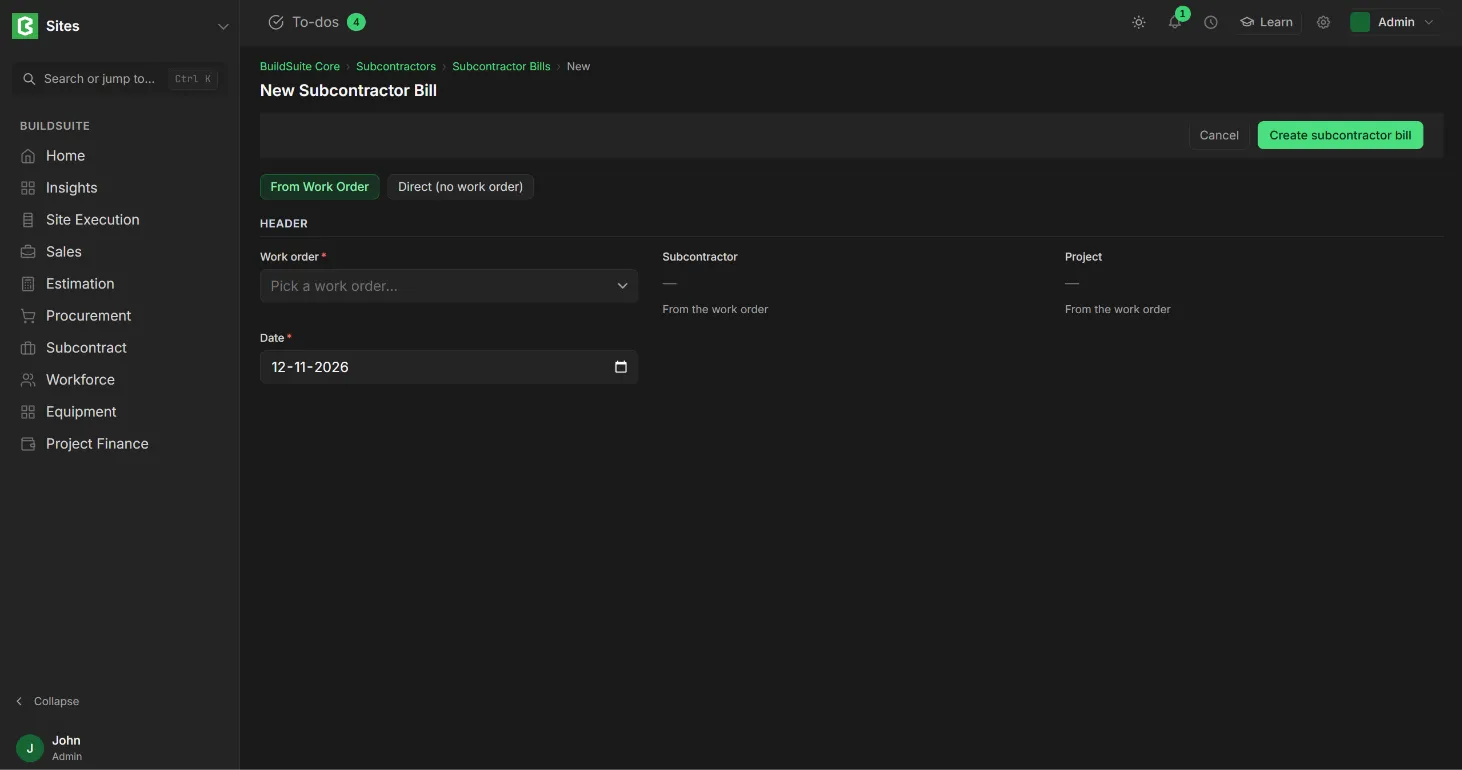
From Work Order is the normal running bill. You pick the work order, and the lines are filled in from its schedule of values and certified measurements. You can also start one with + Bill progress on a work order, or + Subcontractor bill on a certified Measurement Book.
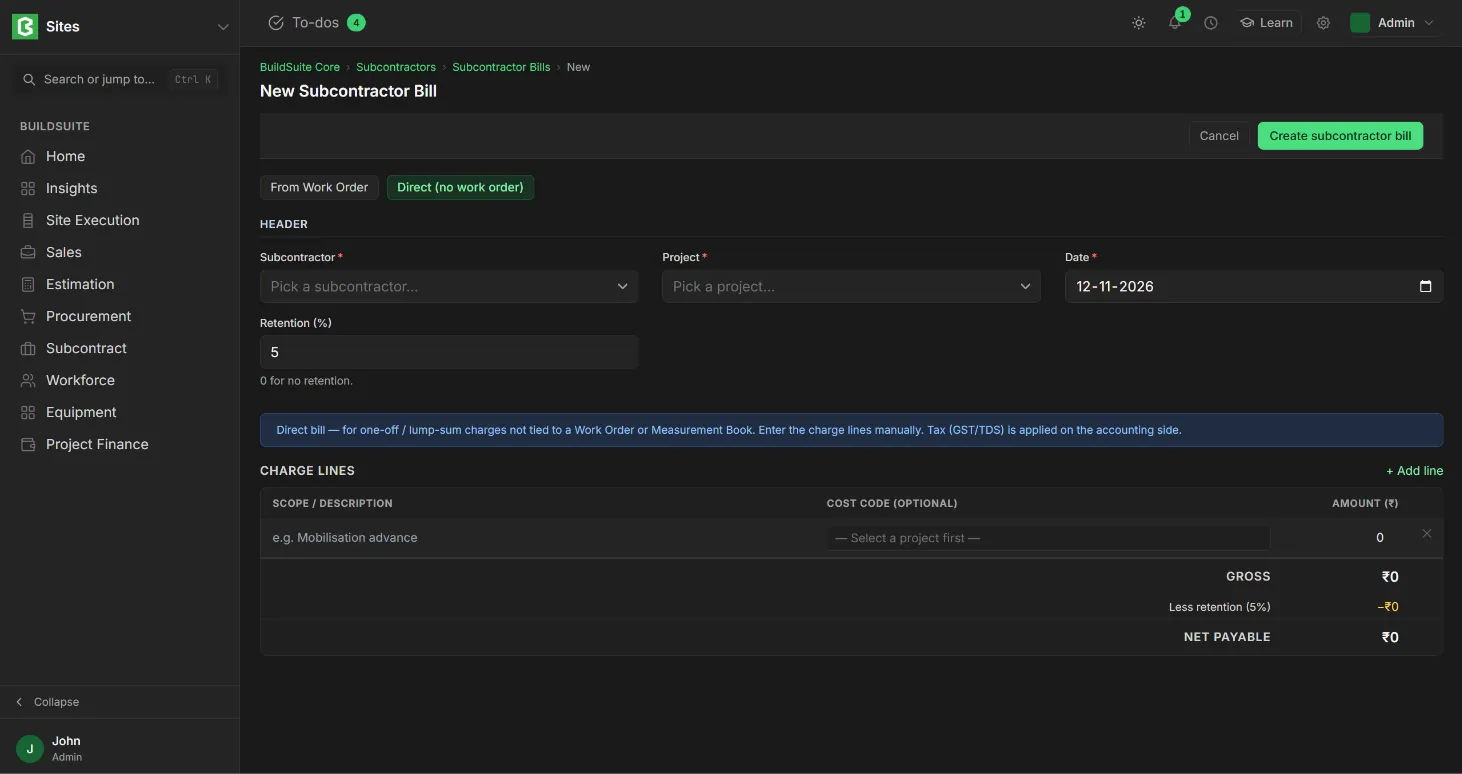
Direct (no work order) is for one-off or lump-sum charges that aren’t part of a work order. You select the subcontractor and project and type the charge lines yourself.
Create a bill from a work order
- Open Subcontractor Bills, click + New and keep From Work Order selected.
- Pick the Work order. The subcontractor and project are filled in from it.
- Set the Date. If you have the subcontractor’s invoice, enter its number and date.
- Check the lines under This period. They are worked out from the certified Measurement Books and can’t be typed in.
- Click Create subcontractor bill. It is saved as Draft.
- On the bill page, add taxes, TDS, a discount or an advance if needed. Then Submit.
Create a direct bill
- Open Subcontractor Bills, click + New and choose Direct (no work order).
- Select the Subcontractor and Project. The project sets the accounting company.
- Set the Date, and the subcontractor’s invoice number and date if you have them.
- Under Charge lines, click + Add line for each charge, with what is being billed, the amount and, if known, a cost code.
- Click Create subcontractor bill. Taxes are added on the bill page.
How the quantity is worked out
On a bill from a work order, each line bills only what hasn’t been billed before:
This period qty = Measured to date (from certified Measurement Books) − Previously billed qty
This period amount = This period qty × Rate
The quantities are fixed when the bill is raised. Work certified later goes on the next bill.
Example: 2,400 m² of tile laying is certified and none has been billed, so this period qty is 2,400 m². At ₹85/m² the gross bill value is ₹2,04,000.
The bill page
The top shows the bill’s status and payment status, the subcontractor and project, and five cards: the Work Order and its delivery type (or the Subcontractor, on a direct bill), Date, Gross this period, Retention with its % and Net payable. After submitting, the bill also shows its linked Purchase Invoice and the Outstanding amount.
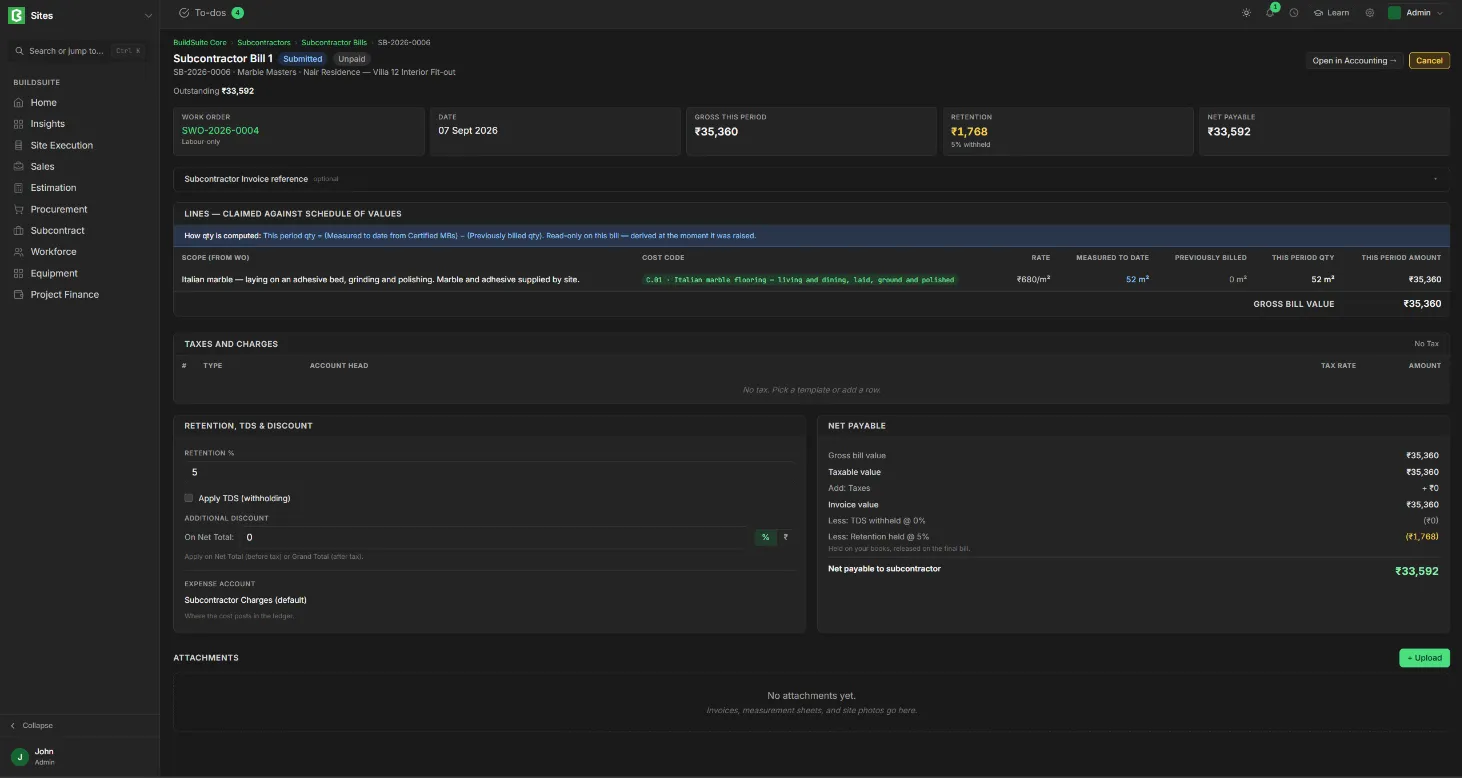
The page has these sections:
- Subcontractor Invoice reference (optional): the subcontractor’s own invoice number and date.
- Lines: scope, cost code, rate, measured to date, previously billed, this period qty and this period amount, with the Gross bill value. On a direct bill, the lines are the charges you entered.
- Taxes and Charges: pick a tax Template, or click + Add row to add a tax with its account head and rate.
- Retention, TDS & Discount: the Retention % (default: the work order’s), Apply TDS (withholding), an Additional discount as % or ₹ on the Net Total (before tax) or Grand Total (after tax), and the Expense account where the cost posts (default: Subcontractor Charges).
- Net payable: the calculation, line by line.
- Advance Payments: click + Link advance to recover an advance already paid to the subcontractor. If the subcontractor has an unlinked advance, a banner at the top says so, with a Link advance button.
- Attachments: click + Upload for invoices, measurement sheets or site photos.
How net payable is worked out
| Gross bill value | Total of this period’s lines |
| Taxable value | Gross, less any discount on net total |
| + Taxes | From the template or rows |
| Invoice value | Taxable value + taxes. This is the Purchase Invoice amount |
| − TDS withheld | If TDS is applied |
| − Retention held | Retention % of the gross. Held on your books and released on the final bill |
| Net payable to subcontractor | What is actually paid |
Example: Gross ₹1,51,200, no tax, no TDS. Retention 5% = ₹7,560. Net payable = ₹1,43,640.
Status and actions
- Draft: Edit, Submit or Delete.
- Submitted, Unpaid or Partly Paid: Make Payment, Open in Accounting or Cancel.
- Submitted, Paid: Open in Accounting or Cancel.
- Cancelled: Amend or Delete.
Make Payment records a payment against the bill: the amount, date, account paid from, mode of payment and reference number. The outstanding amount goes down, and the payment status changes to Partly Paid or Paid. Open in Accounting opens the linked Purchase Invoice in ERPNext.
Rules
- A bill can be edited only while it is in Draft.
- On a bill from a work order, quantities can’t be changed. They always come from certified Measurement Books, less what was billed before.
- Retention is held back from every bill and released on the final bill.
- Submitting a bill creates its ERPNext Purchase Invoice, and adds to Billed on the work order and to actual cost on the BOQ.
- To correct a submitted bill, cancel it, amend the copy and submit it again.